Domain
A domain is a logical unit based on multi-tenancy and includes a complete autonomous system for user authentication, permission management, project management, and more.
Entry: In the cloud management platform, click the  navigation menu in the upper left corner, then click “Authentication & Security/Authentication/Authentication System/Domain” in the left menu to open the Domain page.
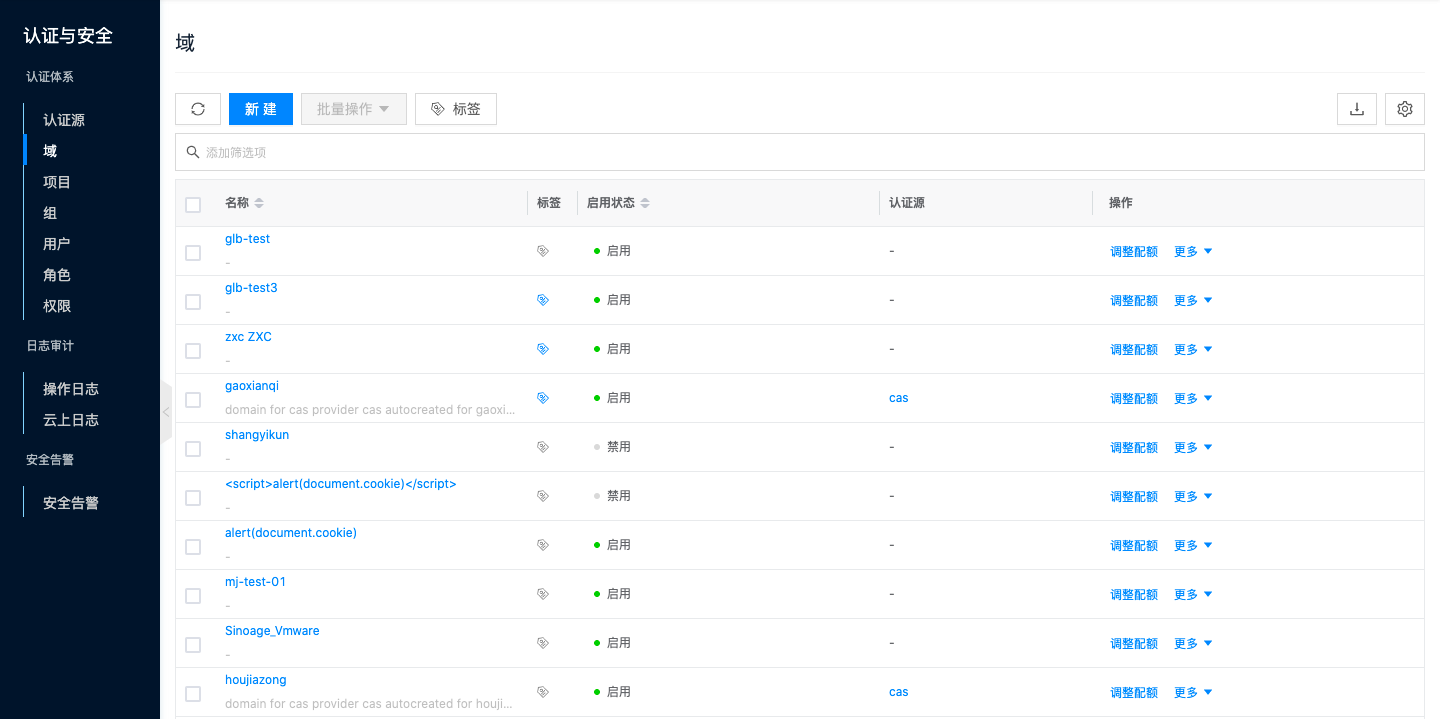
View Domain List
| Field | Description |
|---|---|
| Name | Domain name; click to open the details drawer. |
| Tags | Domain tags. |
| Enabled | Whether the domain is enabled. |
| Identity Provider | Identity provider associated with the domain. |
Domain sources include: domains synced from an LDAP identity provider; after system deployment, a default domain based on the SQL identity provider is created by default, and you can also create local domains.
Create Domain
- On the Domain page, click “Create” above the list to open the create domain page.
- Fill in the parameters and click “OK”.
| Parameter | Description |
|---|---|
| Name | Domain name; required. |
| Notes | Domain notes; optional. |
- When three-level permissions are not enabled, projects cannot be created under a domain.
Enable Domain
Enable a domain that is in the “Disabled” status.
Enable Individually: In the Actions column, choose “Enable” under “More”, then confirm.
Enable in Bulk: Select one or more domains in the “Disabled” status, click “Batch Actions” → “Enable” above the list, then confirm.
Disable Domain
Disable a domain that is in the “Enabled” status. After disabling, users and groups cannot be created under the domain, and users in the domain cannot log in to the OneCloud platform.
Disable Individually: In the Actions column, choose “Disable” under “More”, then confirm.
Disable in Bulk: Select one or more domains in the “Enabled” status, click “Batch Actions” → “Disable” above the list, then confirm.
Delete Domain
A domain must be disabled and have no resources before it can be deleted; the default domain cannot be deleted.
Delete Individually: In the Actions column, choose “Delete” under “More”, then confirm.
Delete in Bulk: Select one or more deletable domains, click “Batch Actions” → “Delete” above the list, then confirm.
Set Tags
Select one or more domains, click “Batch Actions” → “Set Tags” above the list, configure tags, then confirm.
View Domain Details
Click a domain name in the list to open the details drawer. Drawer tabs: Details, Users, Projects, Roles, Cloud Accounts, Operation Logs.
- Resource statistics update every 15 minutes; click the refresh button for a real-time refresh.
Basic Information
Includes Cloud ID, ID, name, status, tags, identity provider, enabled status, creation/update time, notes, and more.
Resource Statistics
| Statistic | Description |
|---|---|
| Infrastructure Resources | CPU cores, memory, VM storage, GPU total and usage, VMs, EIP count, total bandwidth. |
| Resource Statistics | Counts of VPCs, DNS records, identity providers, projects, groups, users, policies, and roles. |
| Multi-Cloud Management Resources | Counts of cloud accounts, cloud users, cloud user groups, and proxies. |
Users
On the “Users” tab, view user name, display name, enabled status, console access, MFA, and domain for users in the domain, and perform management actions.
Projects
On the “Projects” tab, view project name and domain for projects in the domain, and perform management actions.
Roles
On the “Roles” tab, view role name, policies, sharing scope, and domain for roles in the domain, and perform management actions.
Cloud Accounts
On the “Cloud Accounts” tab, view cloud account name, status, enabled status, health status, balance, platform, account, hosts, VMs, auto sync, sync/check time, sharing scope, domain, resource-owning project, and more, and perform management actions.
Operation Logs
- On the “Operation Logs” tab, view domain-related operation records.
- Supports filtering by time, loading more, viewing details, and exporting logs on this page (click
 in the upper right).