Cloud Account
View cost analysis by cloud account, including the cloud account cost list, details, actual cost, RI analysis (AWS / Azure International), project allocation, bill tasks, and billing periods.
Entry: In the cloud management platform, click the  navigation menu in the upper left, then click “Cost & Optimization / Billing / Cost Analysis / Cloud Account Cost” in the left menu to open Cloud Account Cost Analysis.
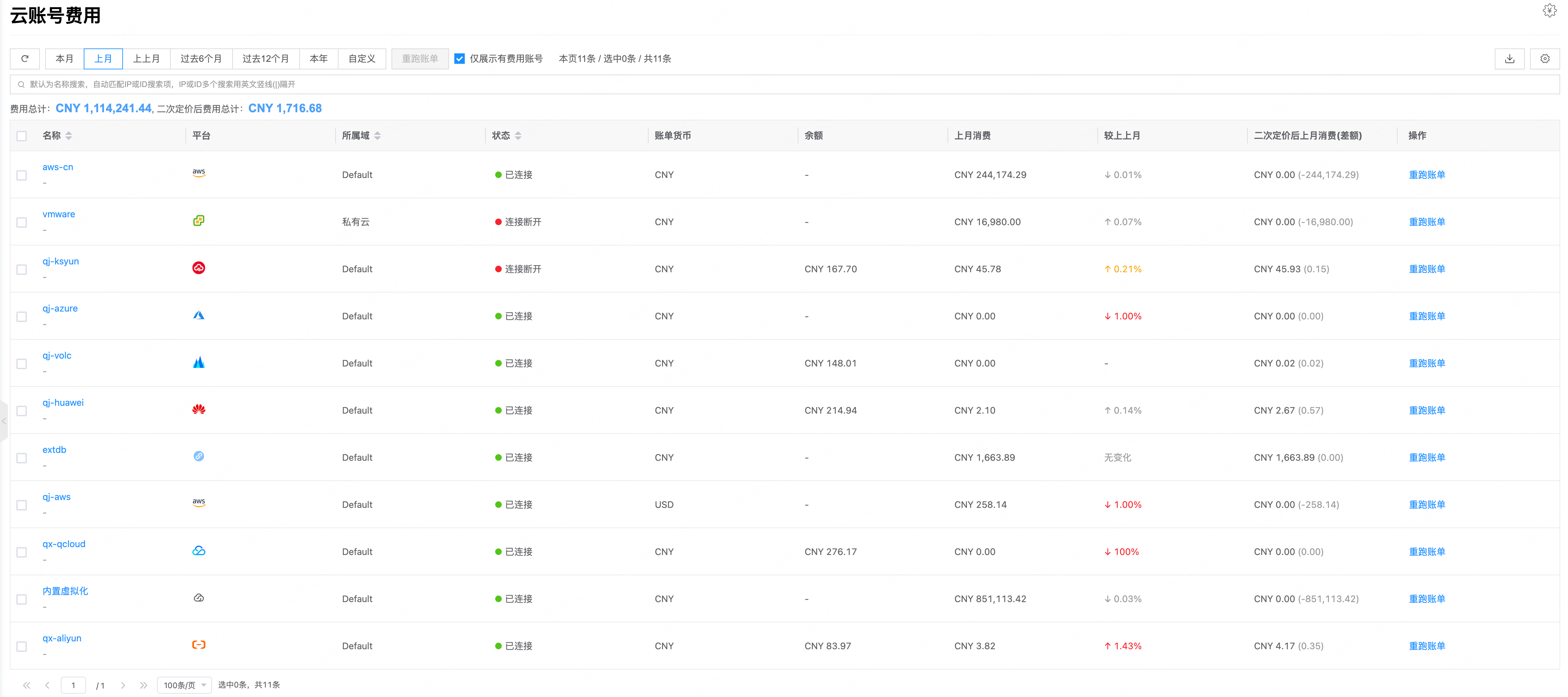
Page notes
Allocation switches
- “Prepaid allocation”: When enabled, prepaid resource costs are allocated per day or month. Page spend = pay-as-you-go cost + allocated prepaid cost. When viewing by billing mode, pay-as-you-go and prepaid allocation appear separately. Global switch for the entire Billing menu.
- “Project cost allocation”: Hidden by default. Appears after a public cloud account creates a policy on the “Project allocation” tab of its details page. When enabled, shared costs that cannot be clearly attributed to a project (traffic, SMS, CDN, etc.) are attributed by policy. Allocated total = already attributed cost + cost attributed by policy. Global switch for the entire Billing menu.
Currency
- With one currency, no dropdown is shown; with multiple currencies, switch in the upper right (for example CNY, USD, BRL).
- With “Merge multi-currency bills” enabled globally, convert by exchange rate and summarize in one currency.
- With “Original bills” enabled globally, domain admin and project views can show original bills in the corresponding currency.
View cloud account cost list
View cloud account cost information produced by the billing module.
- List fields: name, platform, domain, status, bill currency, balance, this-month spend, vs same period last month, spend after secondary pricing (difference), and actions.
- Switch by this month, last month, month before last, last 6 months, last 12 months, this year, or a custom range.
- Option to show only cloud accounts with cost.
- Search and filter by ID, name, platform, domain, bill currency, and more.

View cloud account cost details
- In the cloud account cost list, click a cloud account name to open details.
- Review: cloud account ID, status, name, domain, resource attribution mode, share scope, platform, account, account ID, enabled status, read-only mode, creation/update time, notes, and account information (environment, health status, balance).
View actual cost
View spend trends for the cloud account in a selected time range, and spend amounts and shares by aggregation dimension.
- In the list, click a cloud account name to open the overview.
- Open the “Actual cost” tab.
- After selecting a time range, view spend amounts and shares by dimension.
Spend trends and chart toggle
A bar chart shows spend trends; toggle chart type:
- In bar-chart mode, click
 to switch to a line chart.
 - In line-chart mode, click
 to switch to a bar chart.
View by dimension
Under the current dimension you cannot further aggregate by “Cloud account”, “Platform”, or “Cloud project”.
| Dimension | Description |
|---|---|
| Resource type | List and ring chart of spend by resource type (such as VM or disk). |
| Product | List and ring chart of spend by product (original public-cloud resource type). |
| Cloud subscription | Bar chart and list of top N cloud subscriptions by spend (default TOP 10; TOP 20, TOP 30, or all). |
| Region | List and ring chart of spend by region. |
| Billing mode | List and ring chart of pay-as-you-go vs prepaid spend. |
| Attribution mode | List and ring chart of non-allocated cost and project allocation before/after. With project cost allocation on, shows after-allocation cost; otherwise before. Totals before and after allocation are unchanged; differences appear in project costs. |
| Domain | List and ring chart of spend by domain. |
| Project | After choosing “Project”, optionally choose a domain (all domains if none). Bar chart and list of top N projects. |
| Product category | List and ring chart of spend by product category. |
| Tag | Choose a tag key, then show by tag value. From “Advanced Settings / Bill Resources”. |
| Resource tag | Choose a tag key, then show by tag value. From tags set on resources in Resource Management. |
| Project tag | Choose a tag key, then show by tag value. From “Authentication & Security / Authentication / Identity / Projects”. |
Export bills
- Excel: Click
 in the upper right to export bills for the selected time range and aggregation dimension.
 - PDF: Click
 in the upper right to export bills for the selected time range and aggregation dimension.
RI analysis
View RI (Reserved Instance) usage and coverage details under the cloud account.
Supported platforms:
- AWS
- Azure International (AzurePublicCloud)
Azure China accounts do not show this tab.
- In the list, click a cloud account name to open details.
- Open the “RI analysis” tab.
- Use the top time picker to change the statistics range (default this month); page data refreshes accordingly.
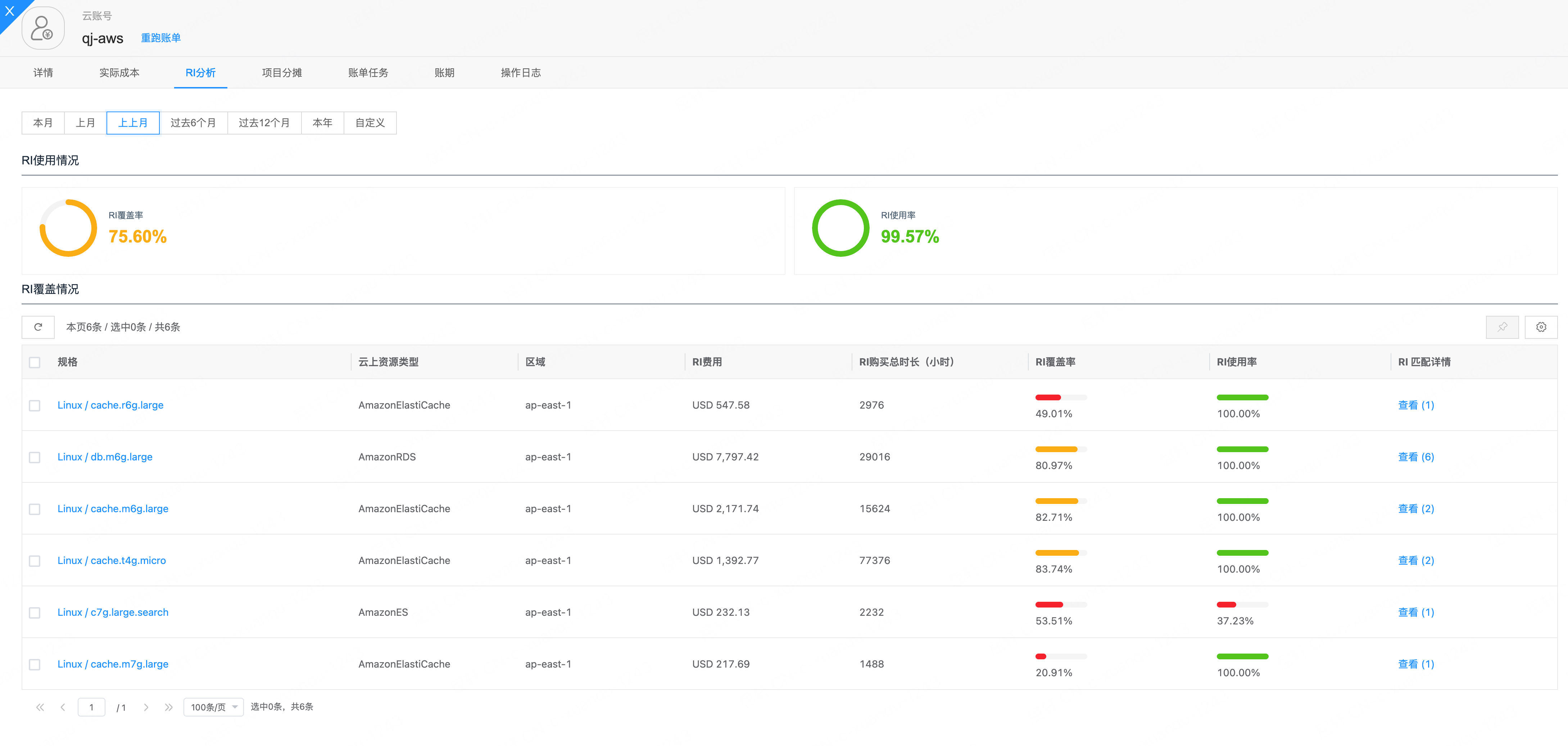
RI usage
Cards show summary metrics for the selected time range:
| Metric | Description |
|---|---|
| RI coverage | Share of related resource usage time covered by RI. |
| RI utilization | Utilization of purchased RIs. |
RI coverage
A list shows coverage details by RI spec. Main fields:
| Field | Description |
|---|---|
| Spec | RI spec; click to open spec details. |
| Cloud resource type | Corresponding cloud-side resource type. |
| RI cost | RI cost for this spec. |
| Total RI purchase duration (hours) | Total purchased RI duration. |
| RI coverage | Coverage ratio for this spec; progress bar colors: 0%–60% red, 60%–90% orange, above 90% green. |
| RI utilization | Utilization for this spec; same progress bar colors. |
| RI match details | Click “View (N)” for match details including spec, matched duration (hours), and usage factor. |
Project allocation
Allocate costs of specified resource types in the cloud account’s default project to specified projects by rule. With “Project cost allocation” enabled, shared costs that cannot be clearly attributed (traffic, SMS, CDN, etc.) are attributed by policy; allocated total = already attributed cost + cost attributed by policy.
The page has two tabs: “Allocation policies” and “Allocation records”.
- In the list, click a cloud account name to open details.
- Open the “Project allocation” tab.
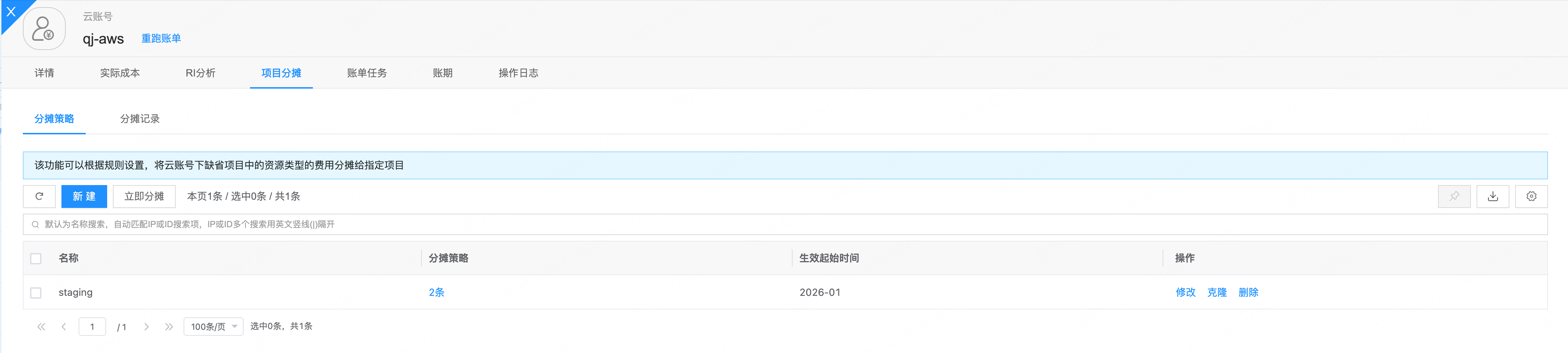
Default AWS Dedicated Host allocation
For AWS cloud accounts, when running default-project allocation (“Allocate now” or default-project allocation in bill tasks), Dedicated Host costs are handled by default in addition to user policies:
- If there are Dedicated Host bills in the month (resource IDs like
h-xxx, resource type Dedicated Host), the association between hosts and their EC2 instances is synced. - After normal shared-cost rules finish, Dedicated Host costs are allocated to VM projects by vCPU weight of VMs on the host.
- Allocated cost records use VM-side resource identifiers so you can view them by project in allocation records.
- If a host cannot be matched to related instances or project ownership, that cost is not auto-allocated and remains under the original ownership.
This capability is on by default (service config enable_dedicated_host_allocate, default true) and applies to AWS only.
Create an allocation policy
- On the “Allocation policies” tab, click “Create”.
- Configure parameters and click “OK”. One policy can include multiple allocation rules (add/remove as needed).
| Parameter | Description |
|---|---|
| Name | Allocation policy name. |
| Source project | Cost source. Options: Default project, Other projects under the cloud account, or one or more specific projects. |
| Source project resource type | Dimension for resources to allocate: All resources, Resource type, Product, or Product detail Code. |
| Resource type / Product / Product detail Code | Appears when “All resources” is not selected; select values for the chosen dimension (including “All”). |
| Allocation method | Equal share, By spend share, By ratio to projects, By ratio to project tags. With only one target project, equal share and by spend share both allocate 100%. |
| Target project | For equal share or by spend share. Options: specified projects, Other projects under the cloud account (excluding this rule’s source), Unallocated projects under the cloud account (excluding all specified sources in this policy). |
| By ratio to projects | When allocation method is “By ratio to projects”: set ratios for each target project. |
| Project tag key-values and ratios | When allocation method is “By ratio to project tags”: set ratios for tag key-values. |
| Effective start time | Select by month; the policy takes effect from that month. |
When allocating by “Product detail Code”, the value comes from the corresponding field in each cloud’s bill files (normalized to product detail Code after ingest):
| Cloud platform | Bill file field |
|---|---|
| Alibaba Cloud (China) | 产品明细Code |
| Alibaba Cloud (International) | Product Type |
| Huawei Cloud | 产品编码 |
| Tencent Cloud | Detail file: 组件名称; API bills: ProductCode |
| AWS (CUR) | lineItem/ProductCode |
| AWS (CUR 2.0) | line_item_product_code |
| AWS (DBR) | Derived from ProductName (prefixes such as Amazon / AWS removed) |
| Azure | MeterName (or meterName) |
| Volcengine | FactorCode |
| Kingsoft Cloud | 产品类型 |
| Google Cloud | sku.id (SkuID) |
Edit / clone / delete policies
- Edit: In the row actions, click “Edit” to adjust allocation rules; name and effective start time cannot be changed.
- Clone: Click “Clone” to create from an existing policy (you can change name, rules, and effective time).
- Delete: Click “Delete” and confirm.
Allocate now
Run default-project allocation for a specified month with current policies.
- On the “Allocation policies” tab, click “Allocate now”.
- Choose “Allocation month” (current and future months are not allowed; default last month) and click “OK”.
Allocation records
On the “Allocation records” tab, view allocation results:
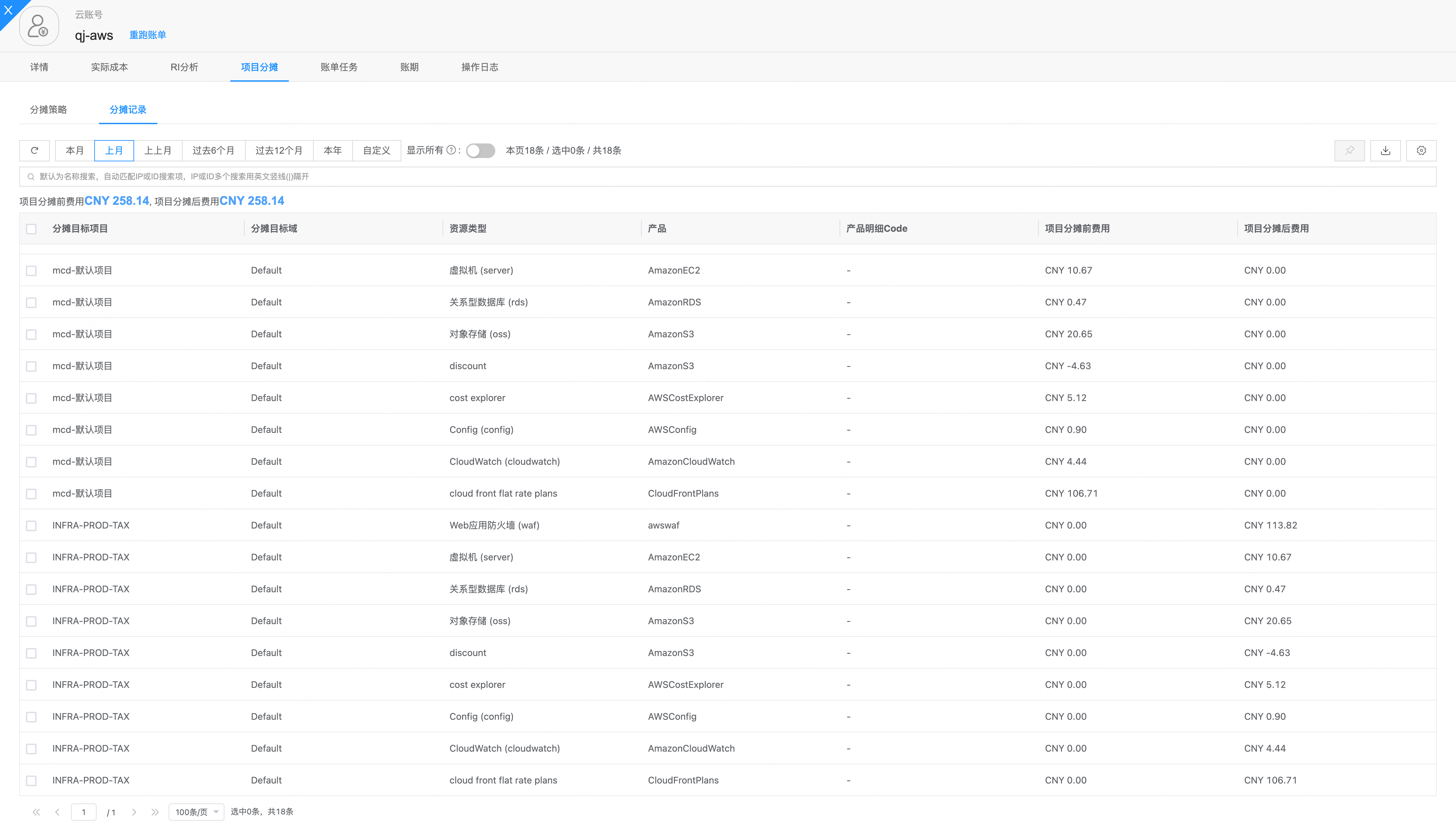
- Filter by time range.
- “Show all”: When on, shows all project costs (including non-allocated); when off, focuses on allocation-related results.
- If the list has project tag columns, you can enable “Aggregate by tag”.
- The top shows totals for Cost before project allocation and Cost after project allocation.
| Field | Description |
|---|---|
| Target project | Project that received the allocation. |
| Target domain | Domain of the target project. |
| Resource type | Platform-normalized resource type. |
| Product | Cloud-side product (resource type). |
| Product detail Code | Product detail code. |
| Cost before project allocation | Project cost before allocation. |
| Cost after project allocation | Project cost after allocation. |
Bill tasks
View asynchronous bill-related tasks for the cloud account; create tasks to rerun or cancel unfinished tasks.
- In the list, click a cloud account name to open details.
- Open the “Bill tasks” tab.
Task list
| Field | Description |
|---|---|
| Task ID | Unique task identifier. |
| Task type | Task type; click to open the details drawer (defaults to operation logs). |
| Status | Pending, Running, Completed, Failed, Cancelled, Cancelled (period closed), and more. |
| Start mode | Automatic or Manual. |
| Month | Bill month for the task. |
| Start time / End time | Task start and end times. |
| Duration | Calculated from start and end times. |
Filter by Month, Task type, and Status.
Common task types:
| Task type | Description |
|---|---|
| Pull bills | Full bill processing pipeline. After submit, related tasks are created and run in order (not only pulling bills). For public cloud typically: resource info sync → pull bills → prepaid allocation → default-project allocation → secondary pricing (if enabled) → spend forecast (if enabled) → product category sync; for private cloud typically: resource info sync → pull bills → default-project allocation, plus optional spend forecast. List action “Rerun bills” submits this type. If pull bills fails, other related tasks for the same month are cancelled. |
| Resource info sync | Sync bill-related resource information only. |
| Prepaid allocation | Run prepaid (for example package) cost allocation only. |
| Default-project allocation | Run default-project allocation by project allocation policies only. |
| Secondary pricing | Recalculate costs by secondary pricing policies only (requires secondary pricing enabled). |
| Spend forecast | Run spend forecast only (requires spend forecast enabled). |
| Delete bills | Delete bills in a specified range. |
| Product category sync | Sync product category data only. |
For routine bill reruns, prefer “Pull bills” (or “Rerun bills” on the list). Other task types rerun only one step of the pipeline.
Create a bill task
Manually create tasks that did not run correctly or need a rerun.
- Click “Create”.
- Choose “Task type”.
- Choose “Time range” (start and end months); or select “Include all historical bills” for all months this cloud account has previously billed (not arbitrary historical months).
- Click “OK”.
If any selected month has a closed billing period, the page suggests unlocking on the “Billing periods” tab first; if you still submit, related bill tasks may be cancelled (status “Cancelled (period closed)”).
When the cloud account is deleted, pull bills, prepaid allocation, default-project allocation, secondary pricing, spend forecast, and similar types are unavailable.
Cancel tasks
Cancel unfinished bill tasks.
- Cancel one: In the row actions, click “Cancel” (usually only Pending and similar cancellable statuses).
- Cancel many: Select tasks and click “Cancel” above the list (Pending, Running, and other cancellable statuses).
If cancellation is not allowed, a message indicates the current bill task cannot be cancelled.
View details and operation logs
- Click the task type to open the drawer.
- “Bill task”: View task type, start mode, cloud account, month, start/end time, duration, and more.
- “Operation logs”: View related operation records to diagnose failures.
Operation logs for “Pull bills” usually include information about downloading bill files from the storage bucket for the cloud account, which helps confirm which bill file was used.
Billing periods
View each month’s billing period, closed status, and amounts for the cloud account; set closed/unlocked status and backfill missing periods.
- In the list, click a cloud account name to open details.
- Open the “Billing periods” tab.
Billing period list
| Field | Description |
|---|---|
| Name | Billing period month (YYYY-MM). |
| Closed status | Closed or Not closed. |
| Bill amount | Aggregated from bill files; for non-current months, if the difference from console amount is greater than 0.01, the amount is shown in red. |
| Console amount | From the official API. |
Filter by name (month) and closed status. The list defaults to reverse chronological order by month.
Set closed status
Close or unlock a billing period. Supports single and batch actions.
After closing, bills for that month cannot be updated. To rerun bills, prepaid allocation, default-project allocation, secondary pricing, and similar operations, unlock first, finish the work, then close again.
- In the row actions, click “Set closed status”; or select multiple rows and click “Set closed status” above the list.
- Choose “Close” or “Unlock”.
- Click “OK”.
Backfill bills
Create billing periods for months that do not yet have period records.
- Click “More” → “Backfill bills” above the list.
- Choose a time range (start and end months; months after the current month are not allowed).
- Click “OK”.
If a selected month already has a billing period, the page prompts “{month} billing period already exists; please change the time range”; adjust and submit again.
Operation logs
On the “Operation logs” tab, view operation records for the cloud account.
List fields: ID, operation time, resource name, resource type, service type, operation type, risk level, event type, result, initiator, owning project, and actions. Filter by resource name, project, domain, initiator, operation type, and more.
Click “View” in the row actions for details.
Rerun bills
Submit a “Pull bills” task to update cloud account bills for a time range through the full bill processing pipeline (resource sync, pull, allocation, secondary pricing, and related steps; see “Bill tasks” above). If “Enable spend forecast” is on, the pipeline also runs spend forecast; after enabling forecast you must rerun bills (or submit a “Spend forecast” task alone) before Forecast Management and Billing Overview have data.
- In the cloud account cost list row actions, click “Rerun bills”.
- Set the rerun time range and click “OK”.
- On the cloud account details “Bill tasks” tab, review execution of each step.