Message Subscription Settings
Message subscription settings customize notifications for resource changes. Supported operations include create, delete, resize, password change, operation failure, expiration release, scheduled tasks, automatic snapshots, and scaling policies. You can configure recipients or bots for resource messages.
Note: All message subscriptions notify the admin role for global resources by default.
Entry: In the cloud management platform, click the  navigation menu in the upper left, then click “Monitoring & Operations / Monitoring / Message Center / Message Subscription Settings” in the left menu to open Message Subscription Settings.
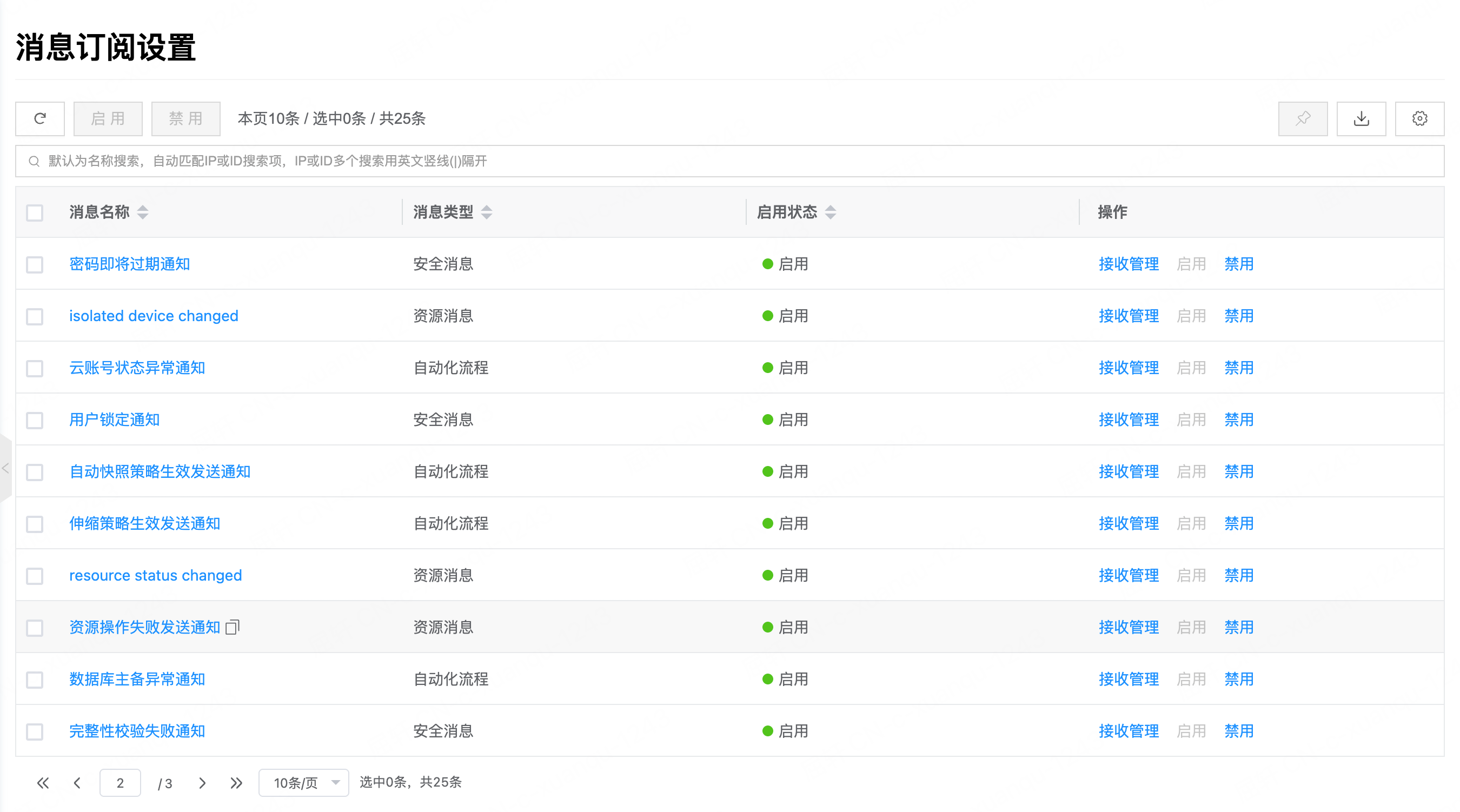
List fields
| Field | Description |
|---|---|
| Message name | Subscription name, such as resource sync notice, resource release, or password expiration; click to open details |
| Message type | Automation workflow, resource message, or security message |
| Status | Enabled or disabled |
Recipient management
Manage recipients or bots that receive notifications. Click “Recipient management” in the row actions to open details — Recipient management.
Recipient management list fields
| Field | Description |
|---|---|
| Resource scope | Scope of resources that trigger notifications: global, domain (domain name shown), or project (project name shown) |
| Status | Recipient enabled status |
| Type | Recipient, role, or bot |
| Receiving object | User name for recipients; role name and scope for roles; bot name for bots |
| Message silence period | Identical resource notifications are not resent within the silence period (for example 5 minutes or 1 hour) |
Create a recipient
Create a recipient, role, or bot that receives notifications.
- On the message subscription details — Recipient management page, click “Create” above the list to open the create dialog.
- Configure the following:
| Parameter | Description |
|---|---|
| Resource scope | Limit which resources send notifications. System: all resource changes in the system; Domain with a specified domain: only that domain; Project with a specified project: only that project |
| Type | Recipient, role, or bot |
| Recipients | When type is Recipient, select one or more users |
| Role scope | When type is Role: global, domain, or project |
| Role | When type is Role, select the role. Global notifies matching-role users system-wide; domain notifies matching-role users in the resource’s domain; project notifies matching-role users in the resource’s project |
| Bot | When type is Bot, select the bot |
| Message silence period | Silence window for identical resource messages; the first notice is sent immediately. Options: 5, 10, 15, 30 minutes; 1, 2, 3, 6, 12, 24 hours |
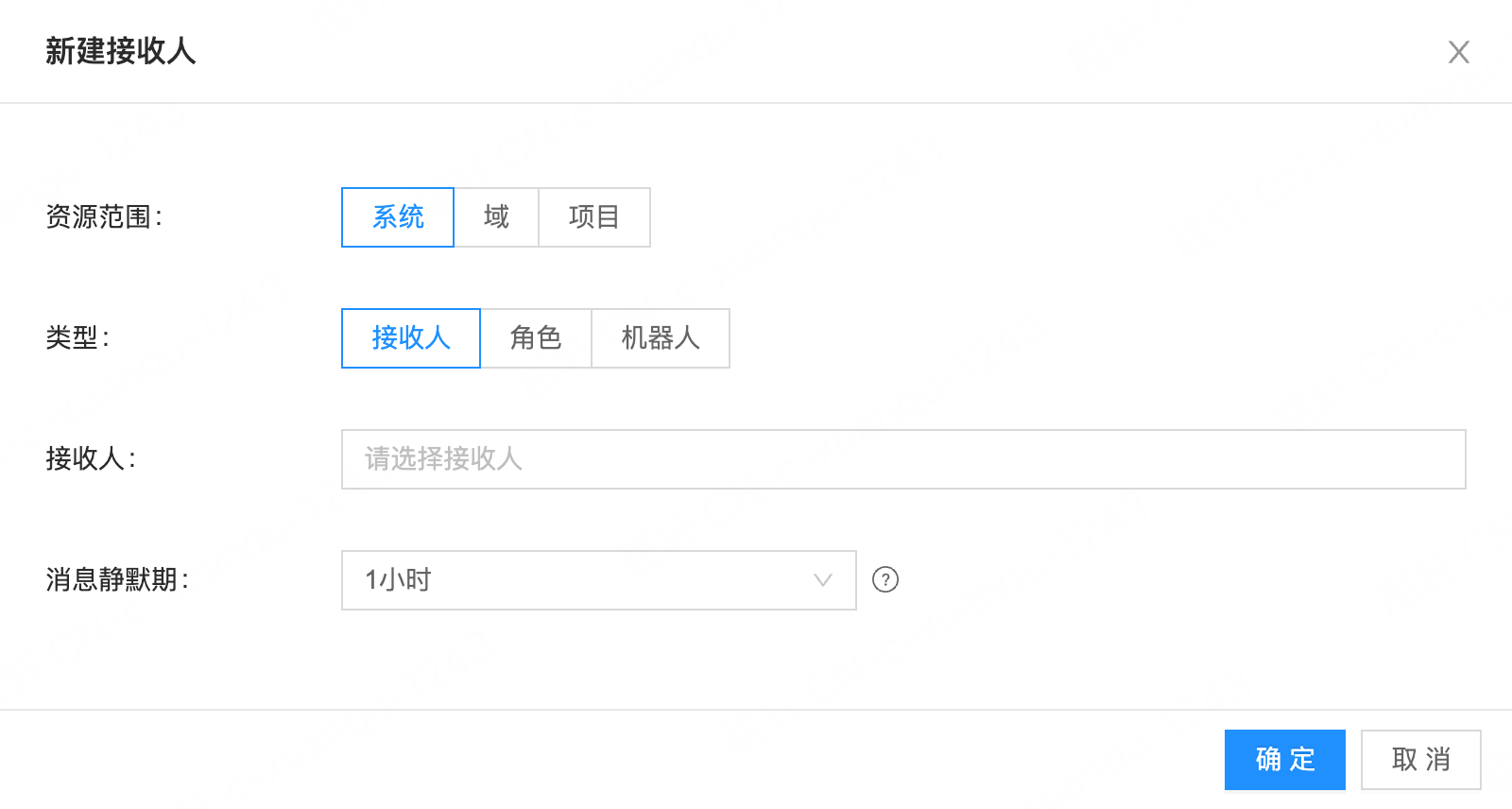
- Click “OK”.
Edit a recipient
Edit a recipient configured under recipient management.
- On the message subscription details — Recipient management page, click “Edit” in the row actions.
- Resource scope and type cannot be changed; you can edit recipients, roles, bots, and silence period.
- Click “OK”.
Enable / disable recipients
Enable or disable recipients. Disabled recipients do not receive resource notifications.
| Action | Single | Batch |
|---|---|---|
| Enable | For a disabled recipient, “More” → “Enable” | Select one or more, then “More” → “Enable” above the list |
| Disable | For an enabled recipient, “More” → “Disable” | Select one or more, then “More” → “Disable” above the list |
Click “OK” in the confirmation dialog.
Delete recipients
Delete recipients from recipient management.
| Action | Steps |
|---|---|
| Delete one | “More” → “Delete”, then “OK” |
| Delete many | Select one or more, “More” → “Delete” above the list, then “OK” |
Enable message subscriptions
Enable disabled messages. When a message is disabled, all of its receiving objects stop getting related resource notifications.
Note: Only the admin console (system admin) can enable message subscriptions.
| Action | Steps |
|---|---|
| Enable one | For a disabled message, click “Enable” in the row actions, then “OK” |
| Enable many | Select one or more disabled messages, click “Enable” above the list, then “OK” |
Disable message subscriptions
Disable enabled messages. When a message is disabled, all of its receiving objects stop getting related resource notifications.
Note: Only the admin console (system admin) can disable message subscriptions.
| Action | Steps |
|---|---|
| Disable one | For an enabled message, click “Disable” in the row actions, then “OK” |
| Disable many | Select one or more enabled messages, click “Disable” above the list, then “OK” |
View message subscription details
View message details.
- On Message Subscription Settings, click the message name to open details.
- Review:
| Tab | Description |
|---|---|
| Basic information | ID, message name, name, message type, status, creation time, update time |
| Resource list | Resource types that send this message |
View operation logs
View operation logs for the message subscription.
- On Message Subscription Settings, click the message name to open details.
- Open the “Operation logs” tab.
| Action | Description |
|---|---|
| Load more logs | The list shows 20 logs by default; click “Load more” for more |
| View log details | Click “View” in the row actions; you can copy the details |
| View logs for a time range | Set start and end dates in the upper right of the list |
| Export logs | Only the current page is exported. Click  in the upper right, choose columns, and click “OK” in the upper right, choose columns, and click “OK” |