Monthly Report
Monthly Report pushes a monthly summary of costs, resource load, and optimization suggestions to specified roles or users on a schedule.
Monthly Report pushes a monthly summary of costs, resource load, and optimization suggestions to specified roles or users on a schedule.
Entry: In the cloud management platform, click the  navigation menu in the upper left, then click “Monitoring & Operations / Reports / Report Subscription / Monthly Report” in the left menu.
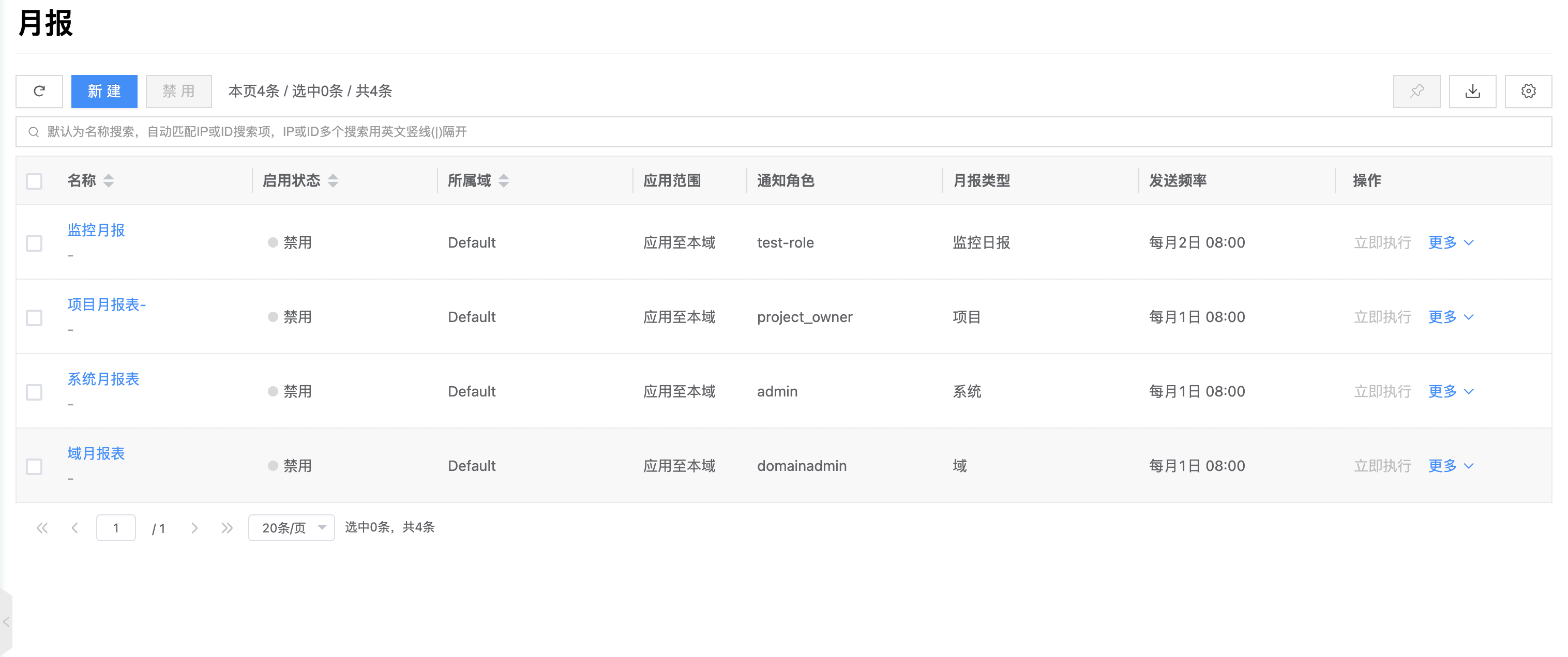
Monthly report types
| Type | Description |
|---|---|
| System monthly report | Monthly summary for the entire cloud platform; data covers all domains |
| Domain monthly report | Monthly summary for a specified domain |
| Project monthly report | Monthly summary for a specified project |
The system automatically creates monthly report subscriptions for the default domain and default project. Users can edit or clone these default subscriptions.
Edit monthly report
On the Monthly Report list page, find the target report and click “Edit”.
Configure:
Parameter Description Name Monthly report name Notify roles Roles that receive the monthly report Send frequency Monthly send date and time (for example day 1 at 09:00) Email subject Email subject suffix; the system adds a time prefix automatically Email template Custom email template content; supports rich text Click “OK” to save.
Run now
- On the Monthly Report list page, find the target report and click “Run now”.
- The system immediately generates and emails the monthly report once.
Only enabled monthly reports support this action.
Change notify roles
- On the Monthly Report list page, find the target report and click “More” → “Change notify roles”.
- Select new recipient roles and save.
Enable / Disable
- On the Monthly Report list page, find the target report and click “More” → “Enable” or “Disable”.
Clone
- On the Monthly Report list page, find the target report and click “More” → “Clone”.
- Adjust parameters and save to create a new monthly report subscription.
Delete
- On the Monthly Report list page, find the target report and click “More” → “Delete”.
- Confirm deletion.
Default monthly reports cannot be deleted.