Cloud AI Gateway
Cloud AI Gateway connects to external cloud vendor AI gateway services, manages configuration and connection status of cloud vendor AI gateway instances, and runs independently of the platform’s built-in aiproxy system.
Entry: On the cloud management platform, click the  navigation menu in the upper left corner, then click “Resource Management/Artificial Intelligence/AI Gateway/Cloud AI Gateway” in the left sidebar to open the cloud AI gateway page.
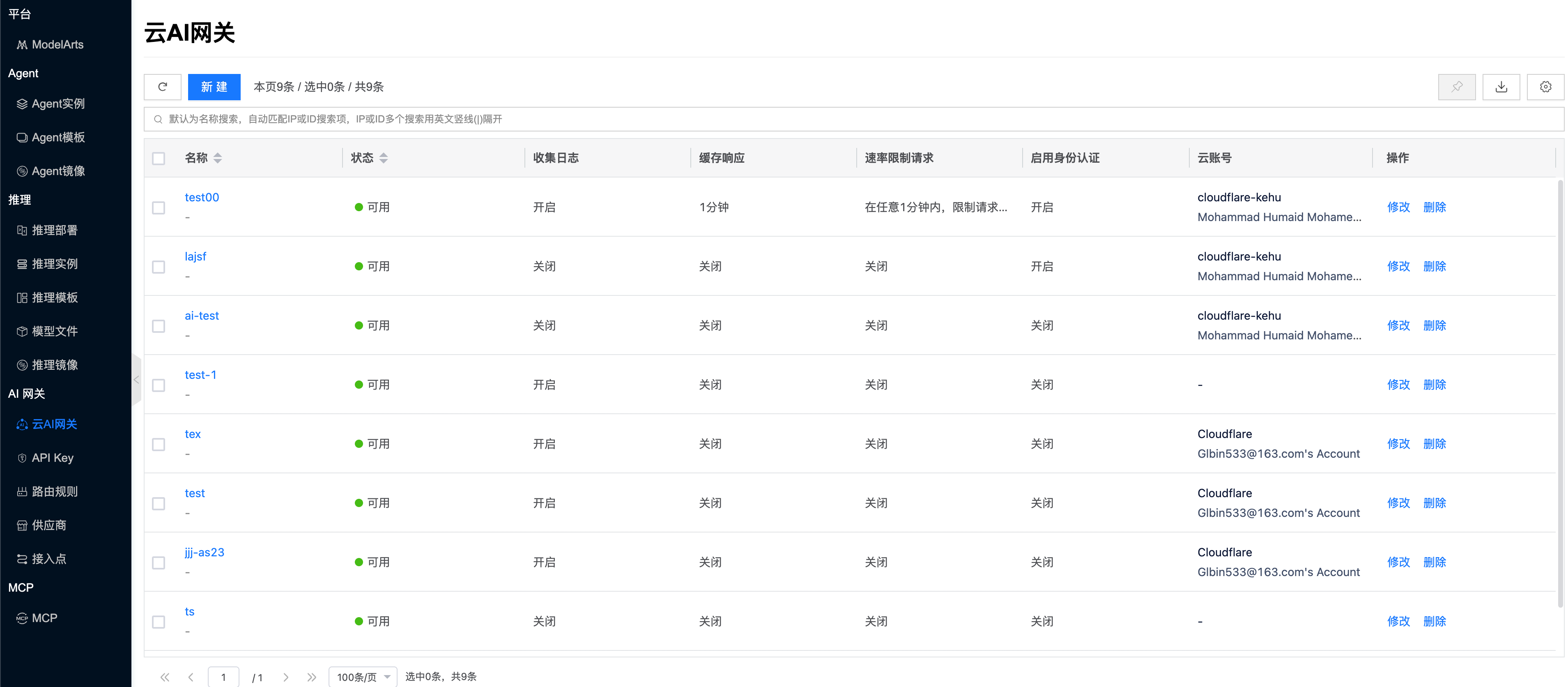
On the cloud AI gateway list page, you can view the name, status, collect logs, cache responses, rate limit requests, enable authentication, cloud account, and other information of gateway instances, and manage them.
Create a cloud AI gateway
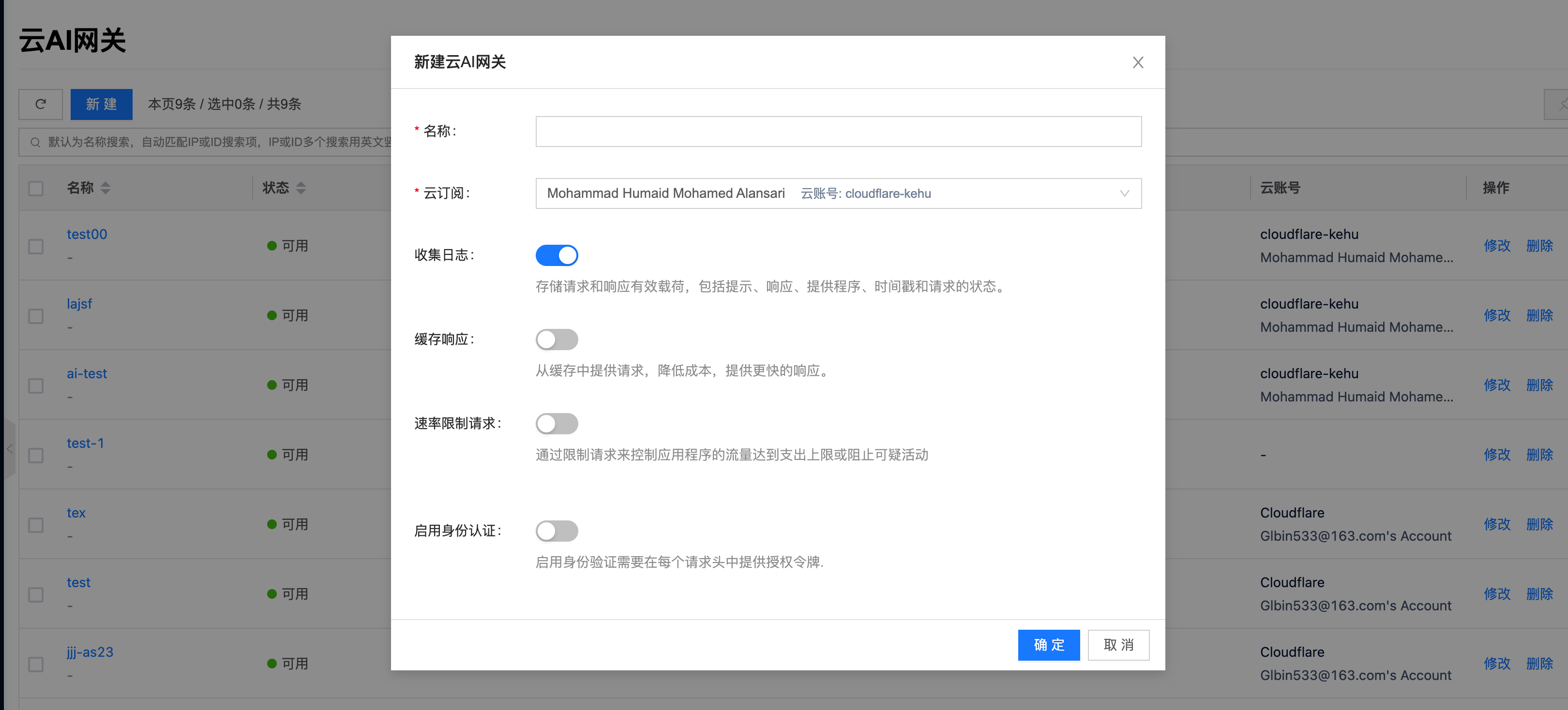
This feature creates a cloud AI gateway instance and configures the cloud vendor and authentication information.
- On the cloud AI gateway page, click “Create” to open the create dialog.
- Configure the following parameters:
- Name: Set the name of the cloud AI gateway instance.
- Cloud vendor: Select the cloud vendor to connect to.
- Authentication: Configure the credentials required to access the cloud vendor AI gateway.
- Description: Set a description for the gateway instance.
- After configuration, click “OK” to create the cloud AI gateway instance.
Modify a cloud AI gateway
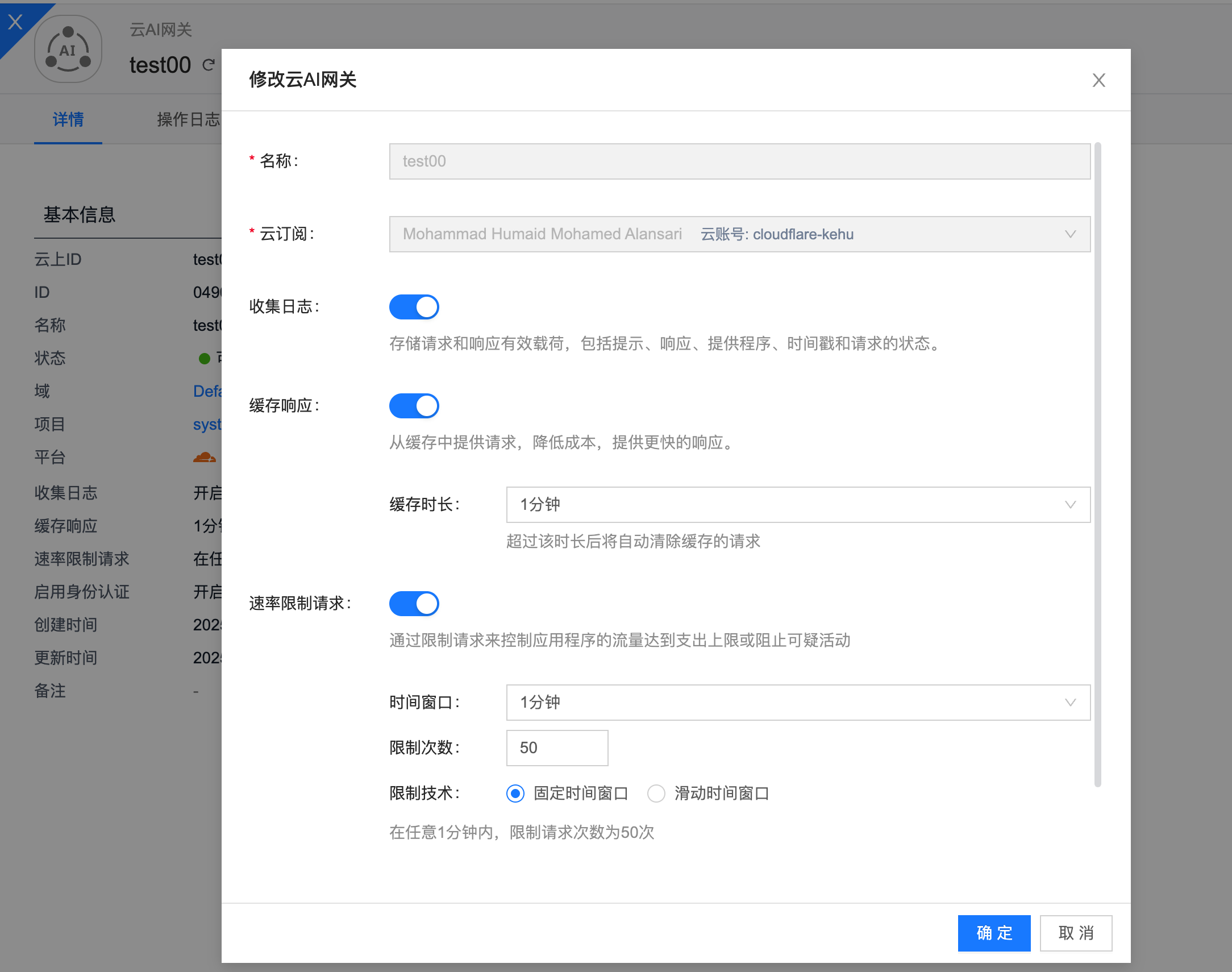
This feature modifies the configuration of an existing cloud AI gateway instance.
- On the cloud AI gateway page, click “More” in the Actions column for a gateway instance, then select “Modify” from the drop-down menu to open the modify dialog.
- Modify the gateway instance configuration, then click “OK”.
Delete a cloud AI gateway
This feature deletes a cloud AI gateway instance.
- On the cloud AI gateway page, click “More” in the Actions column for a gateway instance, then select “Delete” from the drop-down menu to open the confirmation dialog.
- Click “OK” to complete the operation.
View cloud AI gateway details
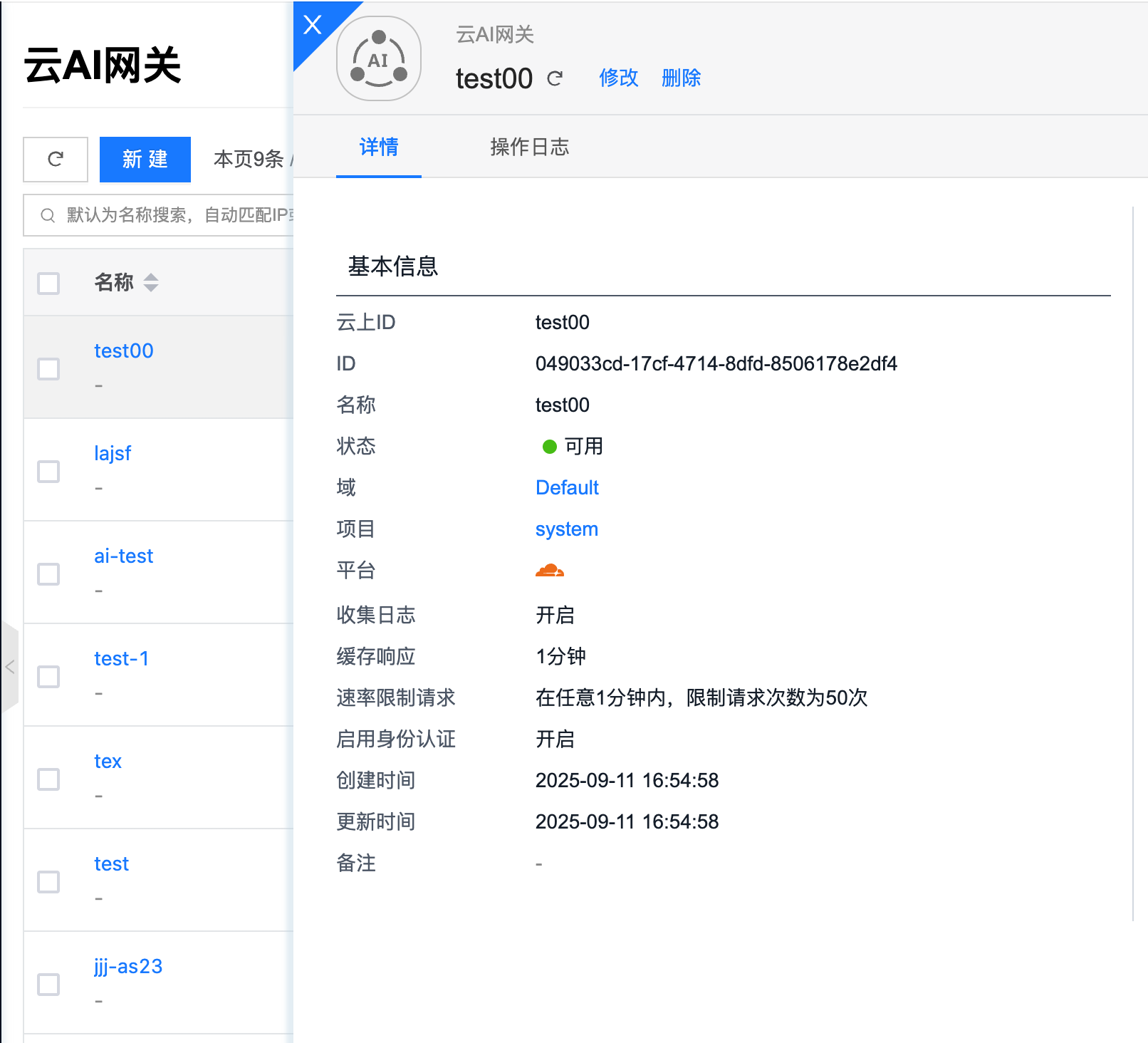
This feature is used to view detailed information about a cloud AI gateway instance.
- On the cloud AI gateway page, click the gateway instance name to open the details page.
- View the following information:
- Basic information: ID, name, cloud vendor, status, domain, project, creation time, update time, and description.
- Configuration: Authentication method, API address, connection status, and more.
View operation logs
This feature is used to view operation log information related to cloud AI gateways.
- On the cloud AI gateway details page, click the “Operation Logs” tab to open the operation logs page.
- Load more logs: The list displays 20 operation log entries by default. To view more, click “Load more”.
- View log details: Click “View” in the Actions column to view log details. You can copy the detail content.
- View logs for a specific time range: To view operation logs for a time range, set the start and end dates in the upper right of the list and query.
- Export logs: Currently only logs displayed on the current page can be exported. Click the
 icon in the upper right corner, set the columns to export in the Export data dialog, and click “OK”.