IP Sets
An IP set is a collection of IP addresses or CIDR blocks. When configuring security group rules, reference an IP set as the source or destination instead of repeating the same IP list across rules, making IP ranges easier to manage.
IP sets support IPv4 and IPv6. One IP set can contain multiple IP addresses or CIDR blocks (separated by commas or newlines).
Supported platforms
| Cloud environment | Platform | Cloud resource | Region scope |
|---|---|---|---|
| On-premise | OneCloud | Local IP set | Default region |
| Private cloud | Cloudpods | IP set | Region-level |
| Public cloud | Alibaba Cloud | Prefix list | Region-level |
| Public cloud | Tencent Cloud | IP address template | Account-level (not bound to a region) |
IP set sources
- Create IP sets on the cloud management platform.
- Sync IP sets from other platforms:
- Cloud to local: The cloud management platform syncs IP sets from connected Cloudpods, Alibaba Cloud, and Tencent Cloud into the local list. Updates on the cloud are synced locally.
- Local to cloud: IP sets created on the cloud management platform for Cloudpods, Alibaba Cloud, and Tencent Cloud map one-to-one to cloud resources; create, edit, and delete on the platform sync to the cloud.
Note: Only security group rules on OneCloud, Cloudpods, Alibaba Cloud, and Tencent Cloud can use IP sets as source/destination. When referencing, the IP set must belong to the same cloud subscription as the security group; except on Tencent Cloud, it must also be in the same region. Managed-platform IP sets must be synced to the cloud before they can be referenced by security group rules.
Entry: On the cloud management platform, click the  navigation menu in the upper left, then in the left sidebar click “Resource Management / Compute / Host Security / IP Sets” to open the IP Sets page.
Use the All, On-premise, Private cloud, and Public cloud tabs at the top to view IP sets by environment. Tabs appear based on whether the corresponding platforms are connected.
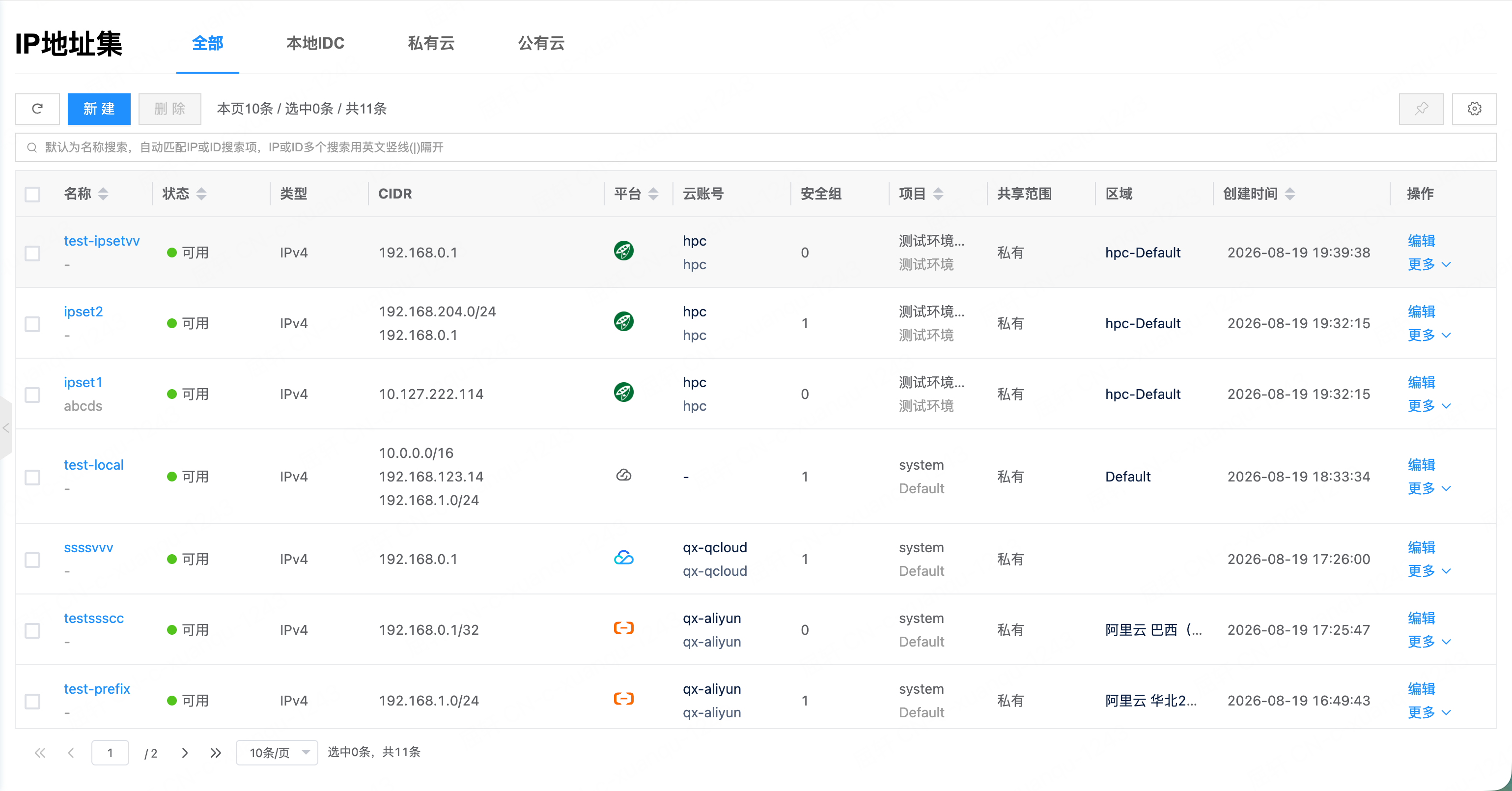
List fields
| Field | Description |
|---|---|
| Name | IP set name; click to open details |
| Status | Current status: available, creating, create failed, syncing, deleting, delete failed, update failed, unknown, and more |
| Type | IPv4 or IPv6 |
| CIDR | IP addresses or CIDR blocks in the set, one per line; “-” if empty |
| Platform | Cloud platform (OneCloud, Cloudpods, Alibaba Cloud, Tencent Cloud) |
| Cloud account | Cloud account. On-premise IP sets show “-” |
| Security groups | Number of security groups that reference this IP set |
| Project | Owning project |
| Share scope | Private / partial share / global share (project-level resource) |
| Region | Region. Tencent Cloud IP sets are account-level; region shows “-” |
| Created at | Creation time |
Note: The list supports filtering by name, description, ID, status, region, cloud account, platform, and project.
Create an IP set
Create a new IP set. Switch among On-premise, Private cloud, and Public cloud tabs to create on different platforms. Creating under All defaults to on-premise.
Note: If the current tab has no connected platform, “Create” is disabled with a message that no cloud resources are available.
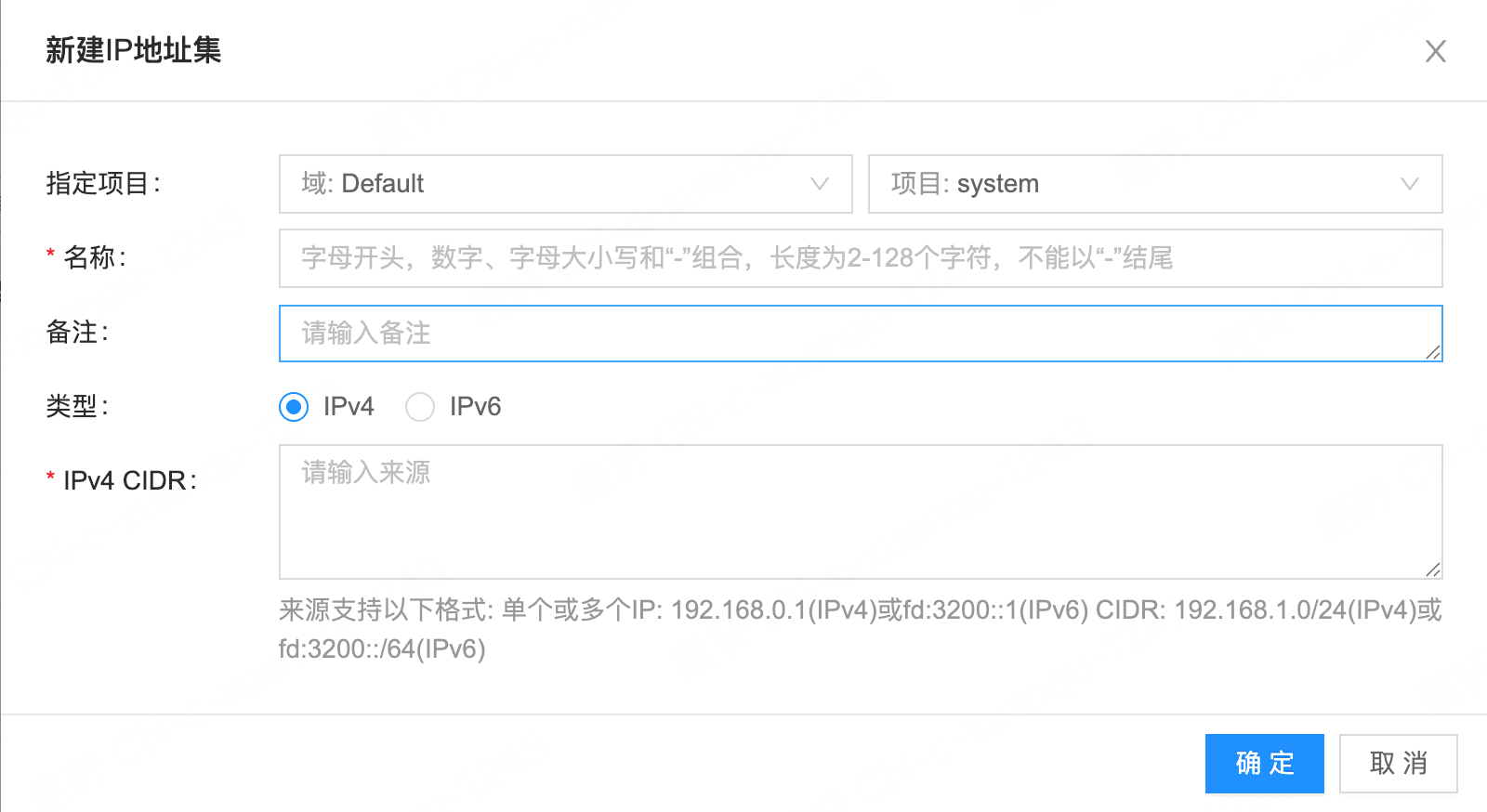
Create an on-premise IP set
- Click the “All” or “On-premise” tab, then click “Create” above the list.
- Configure the parameters below, then click “OK”. On-premise IP sets become available immediately after creation.
Create a private cloud IP set
Before creating a private cloud IP set, ensure a Cloudpods cloud account is connected.
- Click the “Private cloud” tab, then click “Create” above the list.
- Configure the parameters below, then click “OK”. After submit, status is creating; it becomes available after sync to Cloudpods succeeds, or create failed on failure.
Create a public cloud IP set
Before creating a public cloud IP set, ensure an Alibaba Cloud or Tencent Cloud account is connected.
- Click the “Public cloud” tab, then click “Create” above the list.
- Configure the parameters below, then click “OK”. After submit, status is creating; it becomes available after sync to the cloud succeeds, or create failed on failure.
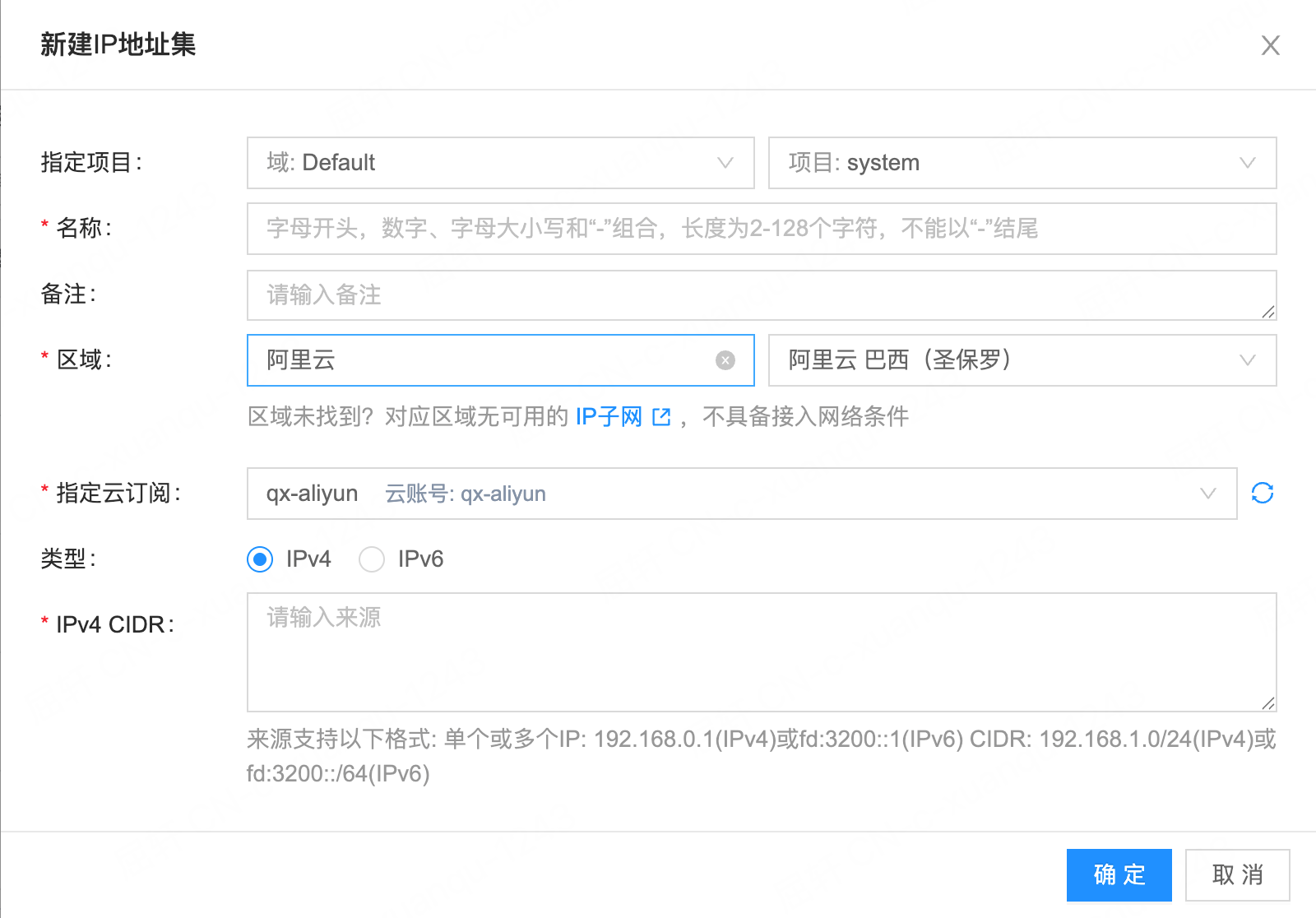
Parameters
| Parameter | Description |
|---|---|
| Domain | Required owning domain (shown only when creating) |
| Project | Required owning project (shown only when creating) |
| Name | Required. Must pass resource name validation |
| Notes | Optional description |
| Region | Required for private and public cloud. Private cloud shows Cloudpods regions only; public cloud can filter Alibaba Cloud and Tencent Cloud regions |
| Platform | Required for public cloud: Alibaba Cloud or Tencent Cloud |
| Cloud subscription | Required for private and public cloud. Select a connected, non-read-only subscription used to create the IP set |
| Type | IPv4 or IPv6; default IPv4. Type cannot be changed after creation |
| CIDR | Required list of IP addresses or CIDR blocks. Supported formats: - Single IP: 192.168.0.1 (IPv4) or fd:3200::1 (IPv6)- CIDR: 192.168.1.0/24 (IPv4) or fd:3200::/64 (IPv6)Separate multiple entries with commas ( ,) or newlines |
Validation: Input is validated by type. IPv4 must be an IPv4 address or IPv4 CIDR; IPv6 must be an IPv6 address or IPv6 CIDR. Mismatches prompt “Enter a valid IPv4/CIDR” or “Enter a valid IPv6/CIDR”.
Note: Tencent Cloud IP sets map to IP address templates on the cloud and are account-level, not bound to a region. You still select platform, region, and subscription when creating, but region is not written to the resource.
Edit
Modify the name, notes, and CIDR list of an IP set.
Note: Type cannot be changed when editing (disabled). Only name, notes, and CIDR can be modified. Edits to managed-platform (Cloudpods, Alibaba Cloud, Tencent Cloud) IP sets sync to the cloud; status becomes syncing, then available when done.
- Click “Edit” in the Actions column.
- Modify name, notes, or CIDR, then click “OK”.
Change project
Change the owning project of an IP set.
Conditions:
- Not available in project mode (disabled with “Changing project is not supported in project mode”).
- The current user must have manage permission on the IP set.
- Share scope must be private (shared IP sets cannot change project).
- Click “More” in the Actions column, then select “Change project”.
- Select the target project, then click “OK”.
Set sharing
Set the share scope of an IP set. As a project-level resource, IP sets support:
- Do not share (private): Only users in this project can use the IP set.
- Project share - partial (multiple projects): Share with one or more projects; only users in this project and the shared projects can use it.
- Project share - all (global share): Share with all projects; all users in the system can use it.
- Click “More” in the Actions column, then select “Set sharing”.
- Select the share scope, then click “OK”.
Sync status
Get the current status of an IP set. On-premise IP sets are set to available directly; managed-platform IP sets sync latest status and CIDR from the cloud.
- Click “More” in the Actions column, then select “Sync status”.
Delete
Delete IP sets.
Delete conditions: If the IP set is referenced by security group rules, it cannot be deleted; Delete is disabled with the reason. Deleting a managed-platform IP set also deletes the cloud resource; status becomes deleting.
Delete a single IP set
- Click “More” in the Actions column, then select “Delete” and confirm.
- Click “OK” to finish.
Batch delete
- Select one or more IP sets, click “Delete” above the list and confirm.
- Click “OK” to finish.
Note: In batch delete, if any selected IP set cannot be deleted, Delete is disabled with the reason.
View IP set details
View detailed information.
- Click the IP set name to open the details page.
- The top menu supports edit, change project, set sharing, sync status, delete, and more.
- The details page includes the following tabs.
IP set information
Basic attributes:
| Field | Description |
|---|---|
| Platform | Cloud platform |
| Cloud account | Cloud account |
| Region | Region. Tencent Cloud IP sets are account-level and show “-” |
| Type | IPv4 or IPv6 |
| Security groups | Number of security groups that reference this IP set |
Other information - CIDR list: all IP addresses or CIDR blocks in the set; each can be copied; “-” if empty.
Security groups
List security groups that reference this IP set. Use this tab to see which security group rules reference it.
Note: On this tab, the security group list hides the “VM count” column and the “Create security group” button, and hides the “Associated VMs” tab in security group details.
View operation logs
View related operation logs.
- On the details page, click the “Operation Logs” tab.
- Load more: the list shows 20 by default; click “Load more” for more.
- View log details: click “View”; content can be copied.
- View logs in a time range: set start and end dates in the upper right.
- Export logs: click the
 icon, select columns, then click “OK” to export logs on the current page.