Pods
A Pod is the smallest unit of orchestration in Kubernetes: a group of containers that share the same runtime environment. Pods are usually created automatically by Deployments, StatefulSets, Jobs, and similar controllers.
Entry: In the cloud management platform, click the  navigation menu in the upper left corner, then click “Resource Management/Kubernetes/Applications/Pods” in the left menu to open the Pods page.
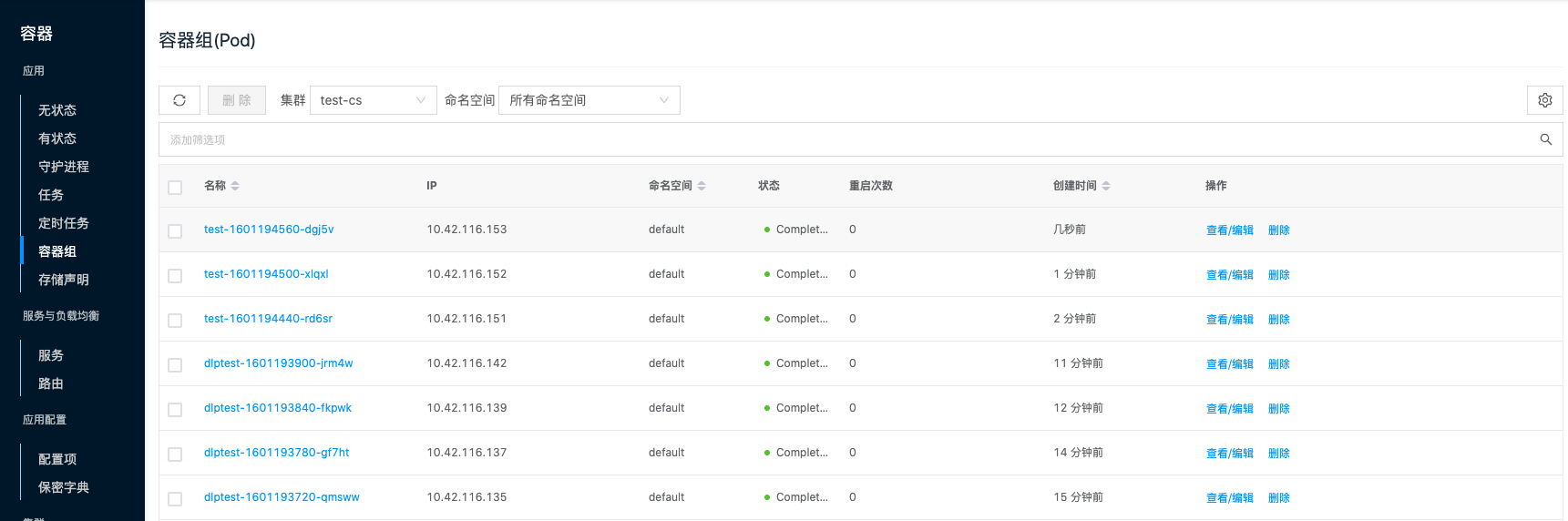
View Pods
Filter Pods by cluster and namespace.
On the Pods page, by default you see Pods in all namespaces of one cluster.
If there are multiple clusters, click the cluster field above the list, select another cluster, and view Pods in all namespaces of that cluster.
If the cluster has multiple namespaces, click the namespace field above the list, select a namespace, and view Pods in that namespace.

View/Edit
View and edit the YAML of a Pod in the selected cluster.
- On the Pods page, click “View/Edit” in the actions column for the Pod to open the view/update dialog.
- You can view and edit the Pod YAML.
- After editing the YAML, click “OK” to apply the changes.
Delete Pods
Delete Pods.
Delete one
- On the Pods page, click “Delete” in the actions column for the Pod to open the confirmation dialog.
- Click “OK” to delete the Pod and related resources.
Delete multiple
- In the Pods list, select one or more Pods, then click “Delete” above the list to open the confirmation dialog.
- Click “OK” to delete the Pods and related resources.
View Pod details
View detailed information for a Pod.
- On the Pods page, click the Pod name to open the details page.
- View information including external ID, ID, name, status, labels, cluster, namespace, IP, restart count, node, QoS class, and creation time.
View Pod terminal
Open a terminal for the Pod.
- On the Pods page, click the Pod name to open the details page.
- Click the Terminal tab to open the terminal page.
- If the Pod has multiple containers, use the container field to switch terminals.
- Perform management and maintenance operations in the container terminal.
View logs
View Pod log information.
- On the Pods page, click the Pod name to open the details page.
- Click the Logs tab to open the logs page.
- If the Pod has multiple containers, use the container field to switch containers.
- You can filter logs by recent time: select “Filter by recent time”, set the time, and display container logs for that period.
View containers
View containers in the Pod.
- On the Pods page, click the Pod name to open the details page.
- Click the Containers tab to open the containers page.
- View container name, image, environment variables, command, args, and more.
View init containers
View init containers. An init container is an Init Container that may include utility tools. For details, see Init Containers.
- On the Pods page, click the Pod name to open the details page.
- Click the Init Containers tab to open the init containers page.
- View init container name, image, environment variables, command, args, and more.
View status
View the current status of the Pod.
- On the Pods page, click the Pod name to open the details page.
- Click the Status tab to open the status page.
- View the current status of the Pod.
View events
Records events for the resource object, including content, source, reason, and creation time, for troubleshooting.
- On the Pods page, click the Pod name to open the details page.
- Click the Events tab to open the events page.
- View event content, source, reason, and creation time.
View source
View and edit the Pod YAML.
- On the Pods page, click the Pod name to open the details page.
- Click the Source tab to open the source page.
- Click “Copy” to copy the YAML.
- After updating the YAML, click “Update”.
View operation logs
View operation logs related to the Pod.
- On the Pods page, click the Pod name to open the details page.
- Click the Operation Log tab to open the operation log page.
- Load more logs: the list shows 20 operation logs by default. To view more, click “Load More”.
- View log details: click “View” in the actions column for an operation log to view details. You can copy the detail content.
- View logs for a time range: to view logs for a period, set the start and end dates in the upper right of the list.
- Export logs: currently only logs shown on this page can be exported. Click the
 icon in the upper right, set the columns to export in the export dialog, then click “OK” to export.