Create HCSO Account
How to create an HCSO account on the cloud management platform and configure related parameters.
Procedure
- On the Cloud Accounts page, click “Create” above the list.
- Select HCSO, then click “Next: Configure cloud account”.
- Configure:
- Name: HCSO account name.
- Key ID / Password: connect to HCSO with Access Key. See How to get HCSO parameters.
- Default region / Endpoint domain: for
iam.cn-north-1.test.com,iamis the identity service,cn-north-1is the endpoint region, andtest.comis the endpoint domain. - Subnet DNS: default DNS for subnets in the environment; up to two, separated by commas.
- Common parameters: see Common configuration parameters.
- Click “Connection test” to verify parameters.
- After a successful test, click “Next: Scheduled sync (optional)” to configure scheduled sync.
- Click “OK” to create the HCSO account.
How to get HCSO parameters
Get an AccessKey on HCSO
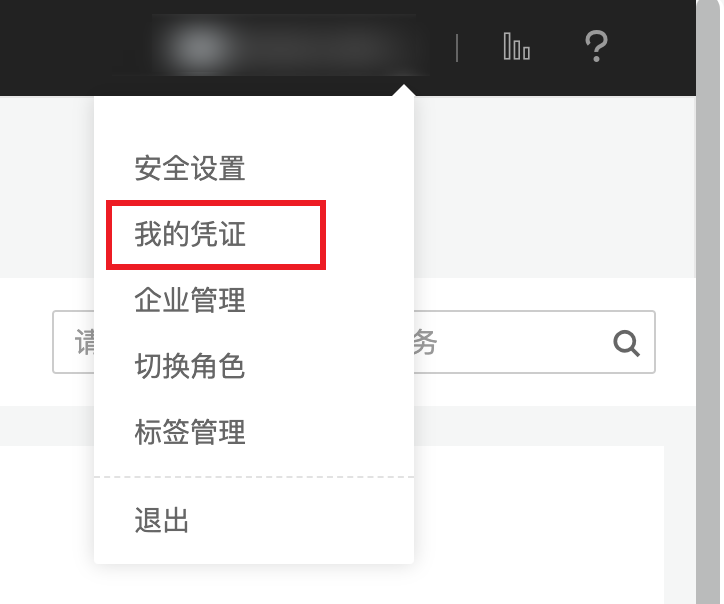
Log in to the HCSO console, hover over the username in the upper right, then select “My credentials”.
Click “Access keys” on the left, then click “Add access key”.
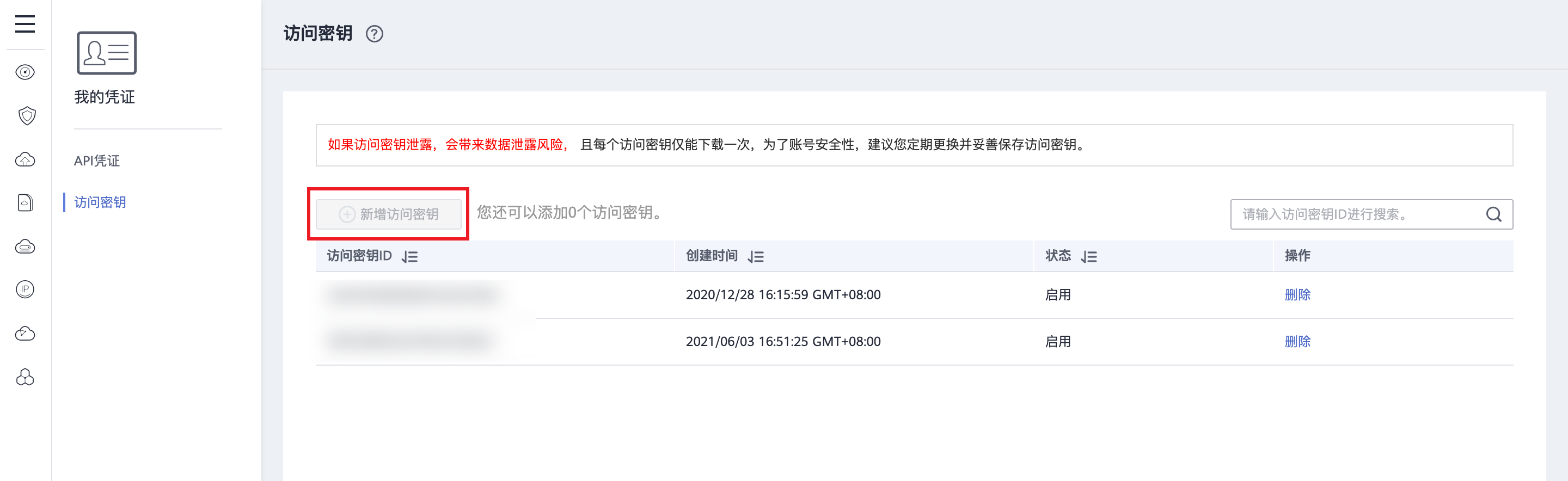
After verification, an Excel file named credentials is downloaded. Open it to get Access Key ID and Secret Access Key.