Proxy
Proxies help the OneCloud platform access cloud platforms that cannot be reached directly due to network or other issues.
Use cases:
- Google Cloud requires a proxy to be accessed
- China Telecom Cloud requires the public IP used for access to be added to a whitelist before direct access
- OneCloud is deployed in an intranet environment and needs a proxy to access public cloud platforms on the internet
Proxy usage rules:
- When a cloud account has no proxy set, it uses a direct connection
- When the request URL is https, the https proxy is preferred; if the https proxy is not set, the http proxy is used
- In all other cases, the http proxy is used
Entry: On the cloud management platform, click the  navigation menu in the upper left, then in the left sidebar click “Resource Management / Multi-Cloud Management / Proxy” to open the Proxy page.
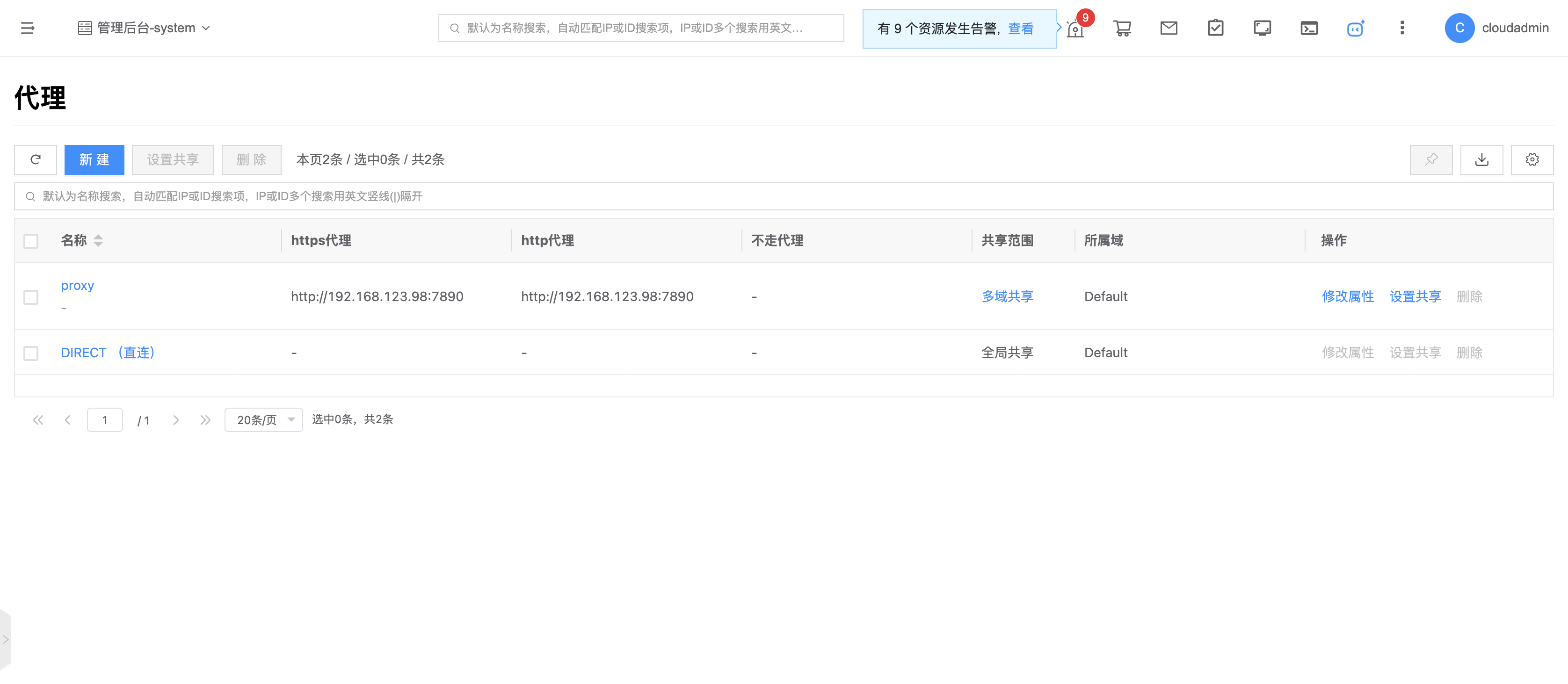
Proxy workflow
flowchart TD
    A[Cloud account requests cloud platform] --> B{Request protocol}
    B -->|HTTPS request| C{HTTPS proxy configured?}
    C -->|Yes| D[Access via HTTPS proxy]
    C -->|No| E{HTTP proxy configured?}
    B -->|HTTP request| F{HTTP proxy configured?}
    E -->|Yes| G[Access via HTTP proxy]
    E -->|No| H[Direct access]
    F -->|Yes| G
    F -->|No| H

    style A fill:#d9f7be
    style B fill:#e6f7ff
    style C fill:#f9f0ff
    style F fill:#f9f0ff
    style D fill:#fff7e6
    style G fill:#fff7e6
    style H fill:#f5f5f5
Create proxy
This feature creates a proxy for a specified domain. When creating a cloud account in that domain, you can select a proxy under the domain to connect to the cloud platform.
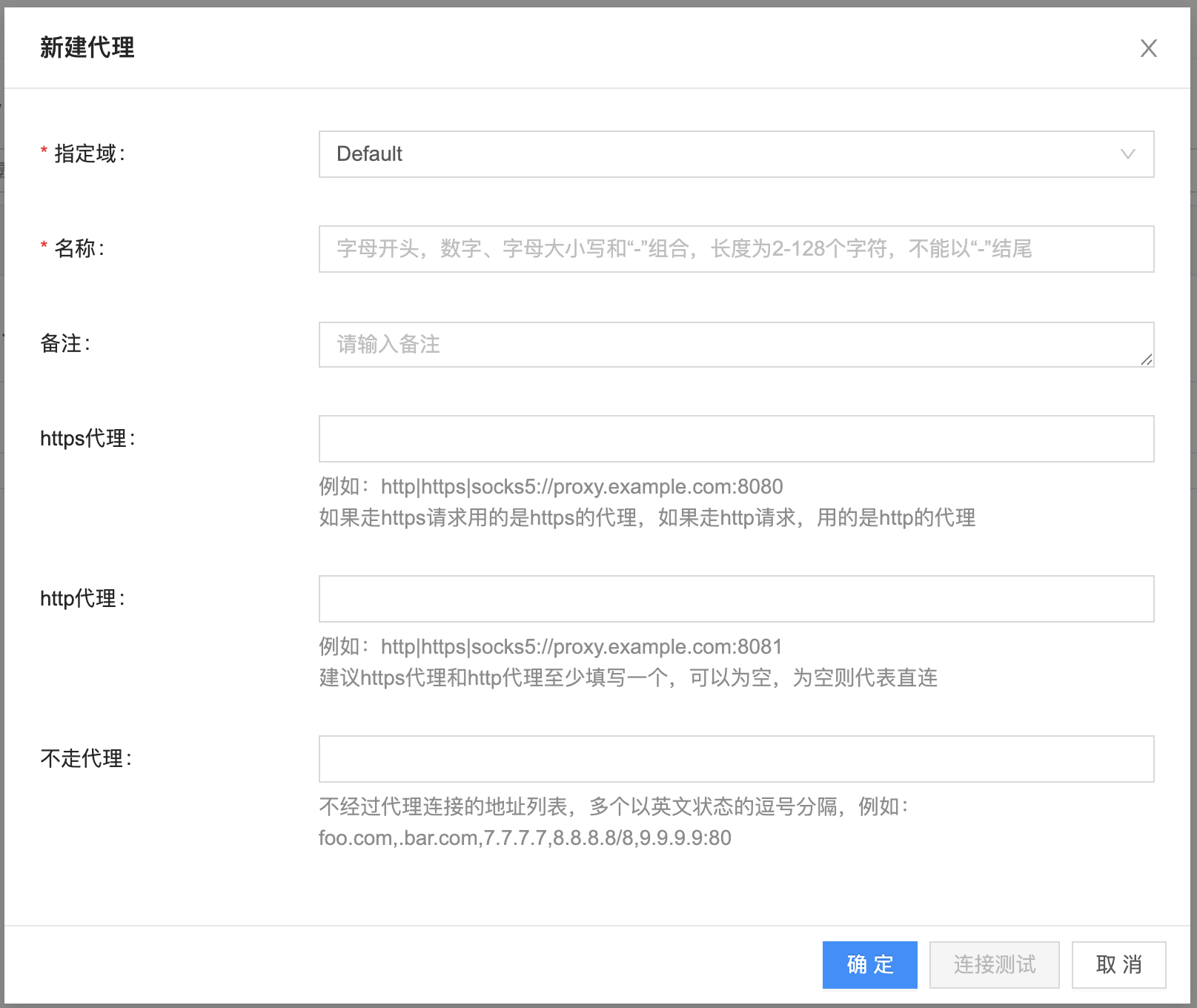
- On the Proxy page, click “Create” above the list to open the create proxy dialog.
- Configure the following parameters:
| Parameter | Description | Required |
|---|---|---|
| Domain | Select the domain the proxy belongs to | Yes |
| Name | Proxy name | Yes |
| Description | Proxy description | No |
| https proxy | Proxy used when the request URL is https. Supports http://, https://, and socks5:// formats, for example http://proxy.example.com:8080 | No |
| http proxy | Proxy used when the request URL is http or https (if the https proxy is not configured). Supports http://, https://, and socks5:// formats, for example http://proxy.example.com:8081 | No |
| No proxy | Whitelist of hosts that bypass the proxy. Supports domains and IP addresses, separated by commas, for example foo.com,.bar.com,7.7.7.7,8.8.8.8/8,9.9.9.9:80 | No |
Tip: Set at least one of https proxy or http proxy. If both are empty, the connection is direct.
- Click “Connection test” to test whether the https proxy and http proxy are reachable.
- Click “OK” to complete the operation.
Modify properties
This feature modifies proxy information. The Direct (direct connection) proxy does not support modifying properties.
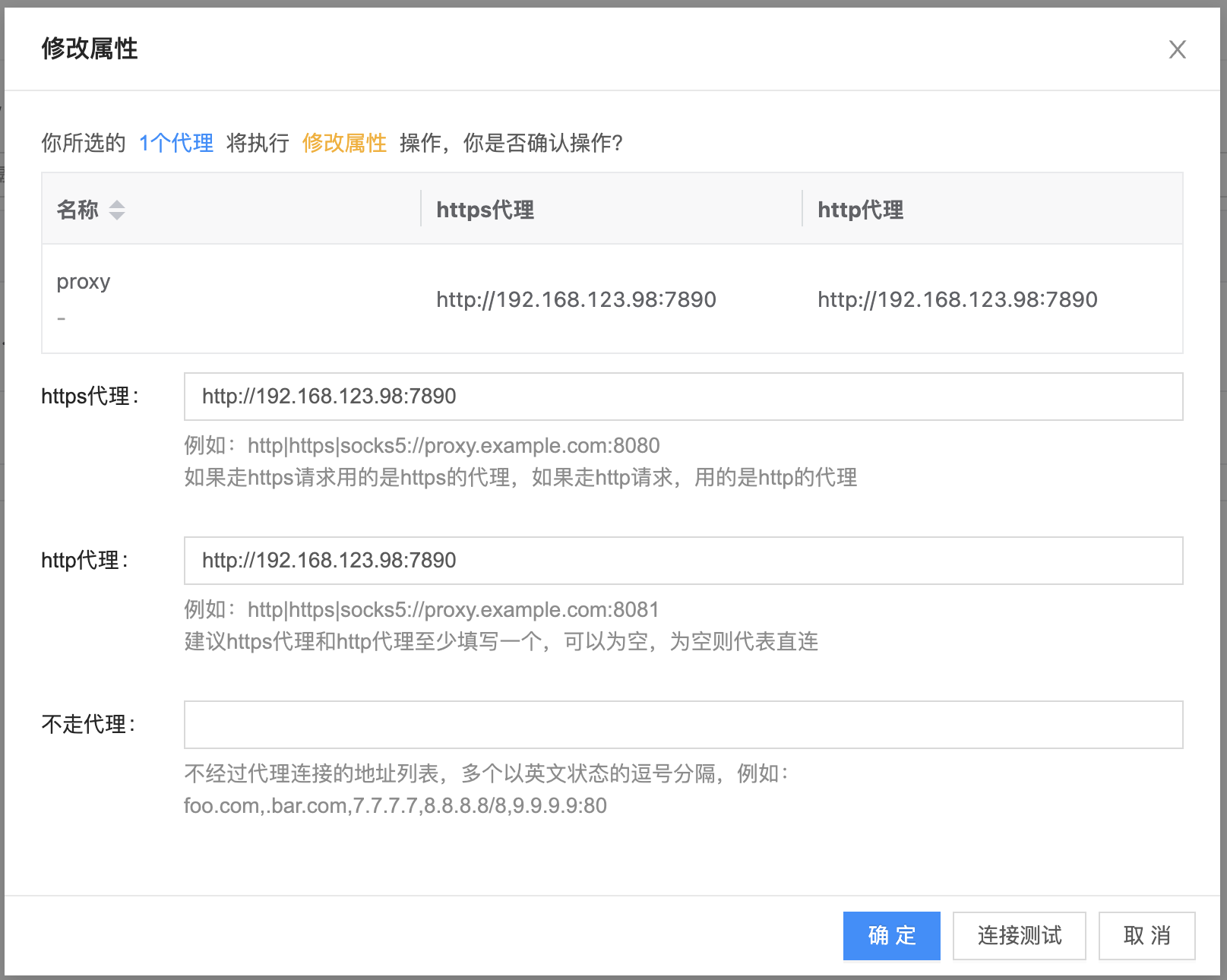
- In the proxy list, click “Modify properties” in the actions column for the proxy to open the modify properties dialog.
- The following parameters can be modified:
| Parameter | Description |
|---|---|
| https proxy | Proxy used when the request URL is https. Supports http://, https://, and socks5:// formats |
| http proxy | Proxy used when the request URL is http or https (if the https proxy is not configured). Supports http://, https://, and socks5:// formats |
| No proxy | Whitelist of hosts that bypass the proxy. Supports domains and IP addresses, separated by commas |
- Click “Connection test” to test whether the https proxy and http proxy are reachable.
- Click “OK” to complete the modification.
Set sharing
This feature sets the sharing status of a proxy.
Domain resources have three sharing scopes:
| Sharing scope | Description |
|---|---|
| Not shared (private) | Domain resources can be used only by users in this domain |
| Domain share – partial (multi-domain share) | Domain resources can be shared to specified domains (one or more); only users in the resource’s domain and the shared domains can use them |
| Domain share – all (global share) | Domain resources can be shared to all domains; all users in the system can use them |
All of the following must be met:
- The current user is in the admin console
- OneCloud has three-level permissions enabled
- Not the Direct (direct connection) proxy
Set sharing for a single proxy
- On the Proxy page, click “Set sharing” in the actions column for the proxy to open the set sharing dialog.
- Select the sharing scope:
- Select “Not shared”: the domain resource sharing scope is private; only users in this domain can use it
- Select “Domain share”:
- Select one or more domains: the sharing scope is domain share – partial; only users in the resource’s domain and the shared domains can use it
- Select all: the sharing scope is domain share – all; all users in the system can use it
- Click “OK” to complete the operation.
Set sharing in batch
- In the proxy list, select one or more proxies, then click “Set sharing” above the list to open the set sharing dialog.
- Select the sharing scope (same as for a single proxy).
- Click “OK” to complete the operation.
Delete proxy
This feature deletes proxies that are not used by any cloud account. The Direct (direct connection) proxy cannot be deleted.
Note: Proxies associated with cloud accounts cannot be deleted. Remove the association from the cloud account first, then delete the proxy.
Delete a single proxy
- In the proxy list, click “Delete” in the actions column for the proxy to open the delete confirmation dialog.
- Click “OK” to complete the operation.
Delete in batch
- In the proxy list, select one or more proxies, then click “Delete” above the list to open the delete confirmation dialog.
- Click “OK” to complete the operation.
View proxy details
This feature views detailed information about a proxy.
- In the proxy list, click the proxy name to open the proxy details page.
- View basic proxy information:
| Parameter | Description |
|---|---|
| Cloud ID | Cloud ID of the proxy |
| ID | Unique identifier of the proxy |
| Name | Proxy name |
| Status | Proxy enabled status |
| Domain | Domain the proxy belongs to |
| Sharing scope | Sharing scope of the proxy |
| https proxy | HTTPS proxy configuration |
| http proxy | HTTP proxy configuration |
| No proxy | Whitelist of hosts that bypass the proxy |
| Created at | Proxy creation time |
| Updated at | Proxy update time |
| Remarks | Proxy description |
- The top menu on the details page supports management operations on the proxy.
View cloud accounts associated with the proxy
This feature views the list of cloud accounts associated with a proxy.
- In the proxy list, click the proxy name to open the proxy details page.
- Click the “Cloud Accounts” tab to open the cloud accounts page.
- View the list of cloud accounts associated with the proxy and manage those cloud accounts.
View operation logs
This feature views log information for proxy-related operations.
- In the proxy list, click the proxy name to open the proxy details page.
- Click the “Operation Logs” tab to open the operation logs page.
| Action | Description |
|---|---|
| Load more | The list shows 20 operation logs by default; click “Load more” to view more |
| View | Click “View” in the actions column for an operation log to view details; you can copy the detail content |
| Filter | Set start and end dates in the upper right of the list to query logs for a time range |
| Export | Click the export icon in the upper right, set export columns in the export data dialog, and export the logs shown on the current page |