Global VPC
On Google Cloud VPC, IP subnets across regions can communicate with each other when access control is not applied. Unlike VPCs on other public cloud platforms, a Google Cloud VPC is a “global” resource without a “region” attribute. Therefore, the OneCloud platform defines Google Cloud VPCs as global VPCs, and virtualizes IP subnets under the VPC as VPC records on the OneCloud platform.
- Creating a global VPC on OneCloud creates a Google Cloud VPC.
- Creating a Google Cloud VPC on OneCloud creates an IP subnet under the Google Cloud VPC.
Entry: On the cloud management platform, click the  navigation menu in the upper-left corner, then in the left menu that appears click “Resource Management / Network / Network / Global VPC” to open the global VPC page.
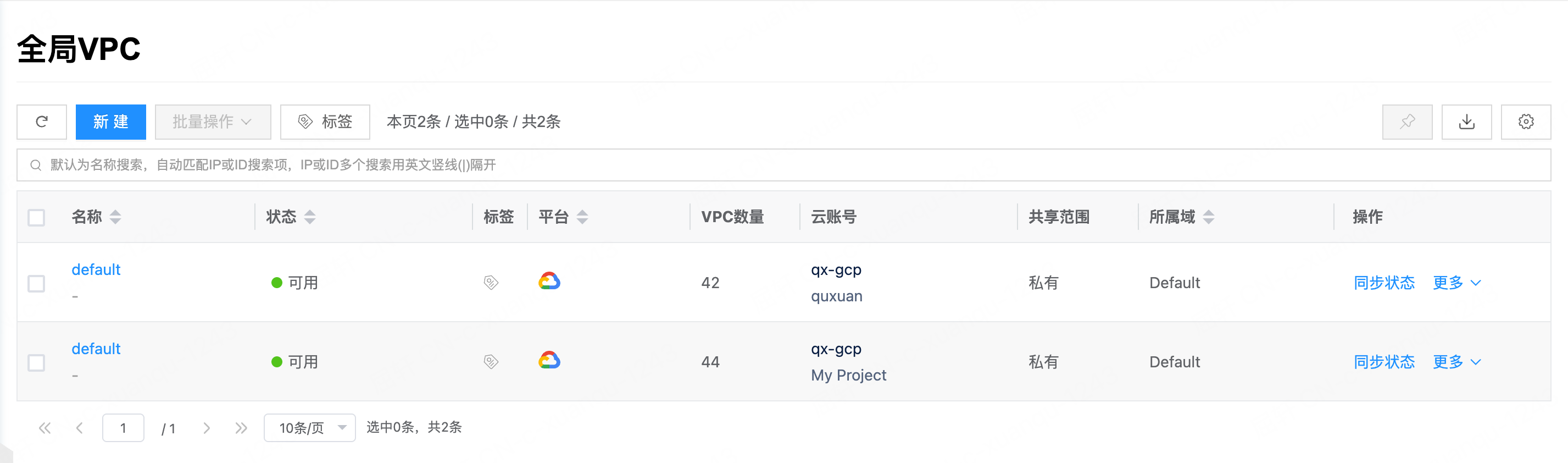
Create Global VPC
Creating a global VPC creates a VPC on the Google platform.
- On the global VPC page, click “Create” above the list to open the create global VPC page.
- Configure the following parameters:
- Domain: Set the domain for the global VPC.
- Platform: Only the Google platform is supported.
- Name: The name of the global VPC.
- Cloud Subscription: Select the Google cloud account used to create the global VPC.
- Click “Create” to complete the operation.
Change Domain
This feature is used to change the domain of a global VPC.
Conditions for changing domain: All of the following must be met
- The current user is in the admin console.
- Three-level permissions are enabled on OneCloud.
- The sharing scope of the global VPC is private.
Change domain for a single global VPC
- On the global VPC page, click “More” in the Actions column on the right of the global VPC, select “Change Domain” from the dropdown, and the change domain dialog appears.
- Select the domain for the global VPC, then click “OK”.
Change domain in bulk
- In the global VPC list, select one or more global VPCs, click “Bulk Actions” above the list, select “Change Domain” from the dropdown, and the change domain dialog appears.
- Select the domain for the global VPC, then click “OK”.
Set Sharing
This feature is used to set the sharing scope of a global VPC.
Domain resources have three sharing scopes:
- Not shared (private): The domain resource can only be used by users in the same domain.
- Domain sharing - partial (multi-domain sharing): The domain resource can be shared with specified domains (one or more). Only users in the resource’s domain and the shared domains can use it.
- Domain sharing - all (global sharing): The domain resource can be shared with all domains, meaning all users in the system can use it.
Conditions for setting sharing: All of the following must be met
- The current user is in the admin console.
- Three-level permissions are enabled on OneCloud.
- Currently, global VPCs are supported only for Google Cloud, so the sharing scope of a global VPC is related to the Google cloud account.
- When the cloud account is not shared, resources synced from the cloud account cannot be shared either.
- When sharing is enabled for the cloud account, resources synced from the cloud account will also have sharing enabled with the cloud account.
- When sharing is enabled for the cloud account, resources synced from the cloud account can change their sharing scope. Ensure the sharing scope stays within the cloud account’s sharing scope.
- When the cloud account’s sharing scope is modified, the sharing scope of resources synced from the cloud account must always remain within the cloud account’s sharing scope. For example, if the cloud account is shared with domains A, B, C, and D, and the domain resource is shared with domains A and C, and the cloud account’s sharing scope is then changed to A and B, the domain resource can only be shared with domain A.
- When the cloud account shares cloud subscriptions, domain resources synced from the cloud account cannot be shared.
Set sharing for a single global VPC
- On the global VPC page, click “More” in the Actions column on the right of the global VPC, select “Set Sharing” from the dropdown, and the set sharing dialog appears.
- Configure the following parameters:
- When the sharing scope is “Not shared”, the domain resource is private and can only be used by users in the same domain.
- When the sharing scope is “Domain sharing”, you need to select the domains to share with.
- When one or more domains are selected, the sharing scope is domain sharing - partial. Only users in the resource’s domain and the shared domains can use the domain resource.
- When all domains are selected, the sharing scope is domain sharing - all. All users in the system can use the domain resource.
- Click “OK” to complete the operation.
Set sharing in bulk
- In the global VPC list, select one or more global VPCs, click “Bulk Actions” above the list, select “Set Sharing” from the dropdown, and the set sharing dialog appears.
- Configure the following parameters:
- When the sharing scope is “Not shared”, the domain resource is private and can only be used by users in the same domain.
- When the sharing scope is “Domain sharing”, you need to select the domains to share with.
- When one or more domains are selected, the sharing scope is domain sharing - partial. Only users in the resource’s domain and the shared domains can use the domain resource.
- When all domains are selected, the sharing scope is domain sharing - all. All users in the system can use the domain resource.
- Click “OK” to complete the operation.
Delete Global VPC
This feature is used to delete a global VPC. A global VPC can be deleted only when it has no VPC resources under it.
- On the global VPC page, click “Delete” in the Actions column on the right of the global VPC to open the confirmation dialog.
- Click “OK” to complete the operation.
View Global VPC Details
This feature is used to view detailed information about a global VPC.
- On the global VPC page, click the global VPC name to open the global VPC details page.
- The menu items at the top of the details page support deleting the global VPC.
- View basic information, including cloud ID, ID, name, status, domain, project, sharing scope, creation time, update time, and notes.
View VPC Information under Global VPC
This feature is used to view VPC information under a global VPC. VPC networks under the same global VPC can communicate with each other.
- On the global VPC details page, click the “VPC” tab to open the VPC page.
- View the VPC name, destination CIDR, region, platform, and cloud account information.
View Operation Logs
This feature is used to view log information for operations related to the global VPC.
- On the global VPC details page, click the “Operation Logs” tab to open the operation logs page.
- Load more logs: The list displays 20 operation log entries by default. To view more, click “Load More” to retrieve additional log information.
- View log details: Click “View” in the Actions column on the right of an operation log to view details. You can copy the detail content.
- View logs for a time range: To view operation logs for a specific period, set the start and end dates in the upper-right of the list, then query logs for that range.
- Export logs: Currently only logs displayed on the current page can be exported. Click the
 icon in the upper-right corner, set the columns to export in the dialog that appears, then click “OK” to export the logs.